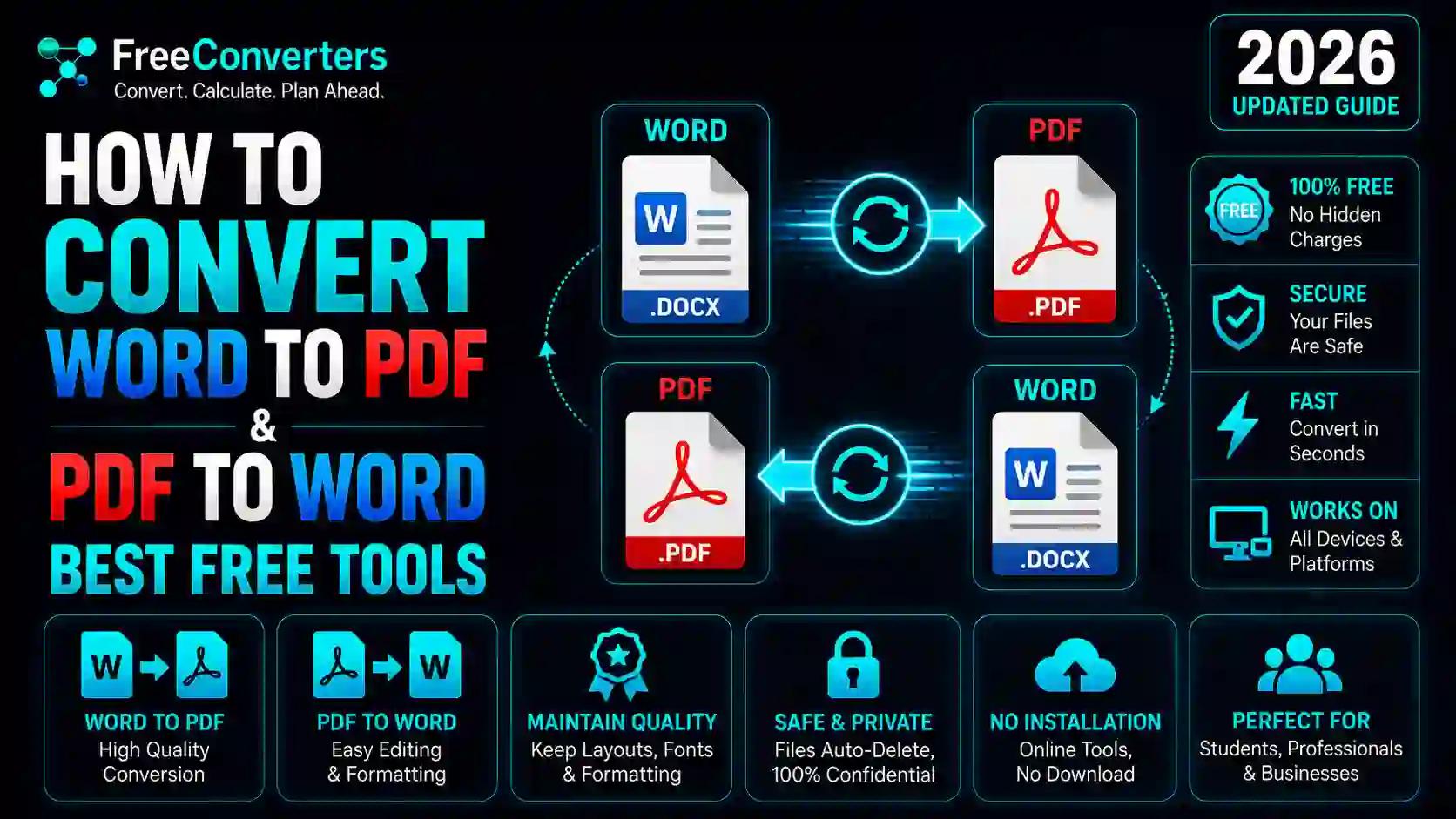
How to Convert Word to PDF and PDF to Word — Best Free Tools
Converting Word to PDF takes seconds through Microsoft Word's built-in "Save As" or export function, while converting PDF back to Word usually needs a dedicated tool, since PDF was never designed to be edited the way Word documents are. Both directions are genuinely simple once you understand what's actually happening structurally — you're not just changing a file extension, you're converting between a fixed-layout format and an editable one, and that distinction shapes everything about how well each conversion actually works.
This guide walks through both directions clearly and separately, since they're functionally different processes, plus the specific formatting issues that trip people up and how to avoid them.
Word to PDF vs. PDF to Word: Why These Are Different Problems
It's worth understanding this upfront, because it explains why one direction is nearly always flawless and the other sometimes isn't.
Word to PDF is essentially a one-way "printing" process. Word already knows exactly how your document should look — fonts, spacing, images, page breaks — and exporting to PDF simply locks that appearance in place as a fixed, unchangeable layout. Nothing needs to be interpreted or guessed at, which is why this direction is almost always accurate and reliable.
PDF to Word is the harder problem. A PDF doesn't inherently know "this is a paragraph" or "this is a table" — it just knows where ink goes on a page. Converting it back to an editable Word document means the tool has to reconstruct that structure by analyzing text positioning, spacing, and visual patterns. This reconstruction step is where formatting sometimes shifts, and it's genuinely the more technically demanding conversion of the two.
How to Convert Word to PDF (Step-by-Step)
Using Microsoft Word directly (the most reliable method):
- Open your document in Microsoft Word
- Click File → Save As (or Export on some versions)
- Choose PDF from the file format dropdown
- Click Save
That's the entire process — no formatting loss, no conversion errors, since Word is generating the PDF directly from its own internal understanding of the document.
Using a free online converter (when you don't have Word installed):
- Open a Word to PDF converter in your browser
- Upload your .docx or .doc file
- Wait a few seconds for the conversion to process
- Download the finished PDF
This method works well for anyone on a Chromebook, a shared computer, or simply without Word installed — the browser-based conversion produces essentially the same reliable result as Word's native export, since most converters use the same underlying rendering logic.
Using Google Docs (a solid free alternative):
- Upload your Word document to Google Drive
- Open it with Google Docs
- Go to File → Download → PDF Document
How to Convert PDF to Word (Step-by-Step)
- Open a PDF to Word converter
- Upload your PDF file
- Let the tool process the conversion — this typically takes longer than Word-to-PDF, since it's doing structural reconstruction rather than a straightforward export
- Download the resulting .docx file
- Open the file in Word and review it carefully before using it for anything important — this step matters more here than in the reverse direction, precisely because reconstruction isn't always perfect
Does Converting PDF to Word Change the Formatting?
Sometimes, yes — and it's worth being honest about this rather than pretending every conversion comes out flawless, since overselling accuracy here just sets people up for a frustrating surprise.
What typically converts cleanly:
- Standard paragraph text in common fonts
- Simple, single-column layouts
- Basic formatting like bold, italics, and underlines
- Straightforward bullet and numbered lists
What's more likely to shift during conversion:
- Complex tables, especially ones with merged cells or unusual borders — columns can occasionally misalign or split unexpectedly
- Multi-column layouts, like newsletters or academic papers with side-by-side text blocks
- Unusual or embedded fonts that Word doesn't have installed locally, which get substituted with a similar-looking alternative
- Precise image placement, particularly images with text wrapped tightly around them
- Headers, footers, and page numbering, which sometimes need manual reattachment after conversion
For a document with mostly straightforward text — a letter, a simple report, an essay — you can generally expect a clean, close-to-perfect conversion. For a complex, heavily designed document — a brochure, a form with precise field alignment, a multi-column newsletter — budget time for manual cleanup afterward. Our dedicated breakdown on how tables behave specifically during PDF to Word conversion covers this particular pain point in more depth, since it's the single most common formatting complaint people run into.
Converting Scanned PDFs to Word (OCR Explained)
This is a distinct sub-case that a lot of people don't realize applies to their specific file until the conversion comes back as an unusable block of nothing, or worse, doesn't produce any editable text at all.
If your PDF was created by scanning a physical document — rather than exported directly from a program like Word — it's technically just an image of text, not actual selectable text. A standard PDF-to-Word converter can't extract editable text from a scanned page directly, because there's no underlying text data to extract in the first place.
This is where OCR (Optical Character Recognition) comes in. OCR technology analyzes the visual shapes in a scanned image and identifies them as actual letters and words, effectively "reading" the scan and generating real, editable text from it. Most modern PDF-to-Word converters include OCR automatically when they detect a scanned or image-based PDF, but it's worth knowing this is happening, since OCR accuracy depends heavily on scan quality — a crisp, high-resolution scan converts far more accurately than a blurry photo of a document taken at an angle.
If you're regularly working with scanned documents specifically, our guide on converting scanned PDFs to Word walks through the OCR process and its limitations in more detail.
Converting Password-Protected PDFs
If your PDF is password-protected, most conversion tools will require you to enter the correct password before processing can begin — this is a legitimate security check, not a bug, since the tool needs to actually open and read the protected file to convert it. If you don't have the password, no conversion tool can legitimately bypass that protection, and attempting to use one that claims it can is a genuine security red flag worth avoiding.
Method Comparison: Which Approach Should You Use?
Microsoft Word (built-in export)
Cost: Free with Word license
Formatting Accuracy: Excellent (Word to PDF only)
Works Offline: Yes
Best For: Users who already have Word installed
Free online converter
Cost: Free
Formatting Accuracy: Very good, occasional issues on complex layouts
Works Offline: No
Best For: Quick one-off conversions, no software needed
Google Docs
Cost: Free
Formatting Accuracy: Good
Works Offline: No
Best For: Users without Word but with a Google account
Adobe Acrobat (paid)
Cost: Paid subscription
Formatting Accuracy: Excellent, best-in-class OCR
Works Offline: Depends on version
Best For: Heavy, regular document workflows
Desktop conversion software
Cost: Often paid
Formatting Accuracy: Very good
Works Offline: Yes
Best For: Bulk/batch conversion needs, offline requirements
For the vast majority of everyday needs — converting a resume, a report, a contract — a free online converter or Word's built-in export handles the job perfectly well. Paid tools like Adobe Acrobat earn their cost specifically for high-volume, complex document workflows where formatting precision matters enormously and errors are costly.
Is It Safe to Use Free Online Document Converters?
This is worth addressing directly, especially given how many of these documents contain sensitive personal or business information. A few things worth checking before uploading anything sensitive:
- Does the site use HTTPS? A converter without a secure connection shouldn't be trusted with any real document.
- Is there a stated file retention policy? Trustworthy converters explicitly state that uploaded files are deleted automatically after a short window, rather than stored indefinitely.
- Does the tool require unnecessary account creation just to convert a file? Legitimate converters generally don't need an email address for a basic conversion.
Our guide to online tool safety walks through exactly what to look for in more depth, and our privacy guide for online converters specifically covers what actually happens to your file behind the scenes during conversion.
Converting Word to PDF on Mobile (iPhone and Android)
Both platforms handle this reasonably well without needing a dedicated app:
On iPhone, if you're working in the Word app itself, tap the three-dot menu, select Export, and choose PDF. Alternatively, opening a browser-based converter works identically on mobile as it does on desktop.
On Android, the Word app follows the same export path, or you can use any browser-based converter directly, since the conversion happens server-side rather than depending on your device's processing power.
For PDF to Word on either platform, a browser-based converter is generally the most practical route, since dedicated conversion apps often come with more restrictive free tiers than their desktop or web counterparts.
Common Mistakes to Avoid
- Assuming every PDF-to-Word conversion will be flawless. Complex layouts genuinely need a manual review pass — build that expectation in rather than being caught off guard.
- Not checking whether a PDF is scanned before converting. If your conversion comes back empty or garbled, check whether the source PDF was actually a scanned image needing OCR rather than a text-based PDF.
- Converting a password-protected file without having the password ready. This stalls the process unnecessarily if you're not prepared for the prompt.
- Uploading sensitive documents to an unverified converter. Always check for HTTPS and a stated privacy policy first, regardless of how convenient a tool looks.
- Forgetting to proofread after PDF-to-Word conversion, particularly for OCR-based conversions from scanned documents, since OCR occasionally misreads similar-looking characters.
Frequently Asked Questions
How do I convert a Word document to PDF for free? Use Microsoft Word's built-in "Save As" or "Export" function and select PDF as the format, or upload your file to a free online Word to PDF converter if you don't have Word installed.
How do I convert a PDF back to Word? Upload your PDF to a dedicated PDF to Word converter, which reconstructs the document's text and layout into an editable .docx file you can open directly in Word.
Does converting PDF to Word change the formatting? Sometimes — simple text documents convert cleanly, while complex tables, multi-column layouts, and precise image placement are more likely to shift slightly and need manual adjustment afterward.
Is it safe to use free online Word to PDF converters? Generally yes, provided the tool uses HTTPS, states a clear file deletion policy, and doesn't require unnecessary account creation just to perform a basic conversion.
Can I convert a scanned PDF to an editable Word document? Yes, using OCR (Optical Character Recognition), which reads the text within a scanned image and converts it into genuine, editable text — most modern PDF-to-Word tools apply this automatically when they detect a scanned file.
What is the best free tool to convert Word to PDF? Microsoft Word's own built-in export function is the most reliable option if you already have Word installed, while a browser-based Word to PDF converter works equally well if you don't.
Do free PDF to Word converters add a watermark? This varies by tool — check the specific converter's terms before use, since some free tiers do add a watermark or limit file size, while others (including ours) don't.
Can I convert Word to PDF without installing software? Yes — any browser-based converter or Google Docs handles this entirely online, with no software installation required on your device.
The Bottom Line
Word to PDF is close to a solved problem — Word's own export function or any reputable free converter will get you a clean, accurate result nearly every time. PDF to Word is the direction that actually needs a bit of care: know that complex layouts may need cleanup, check whether OCR applies if you're working from a scan, and always give the converted file a quick review before treating it as final.
For either direction, our Word to PDF and PDF to Word converters handle the job directly in your browser, free, with no installation required — and if you're regularly dealing with scanned documents or tables that need extra attention, our guides on converting scanned PDFs and PDF table formatting are worth bookmarking for those specific cases.