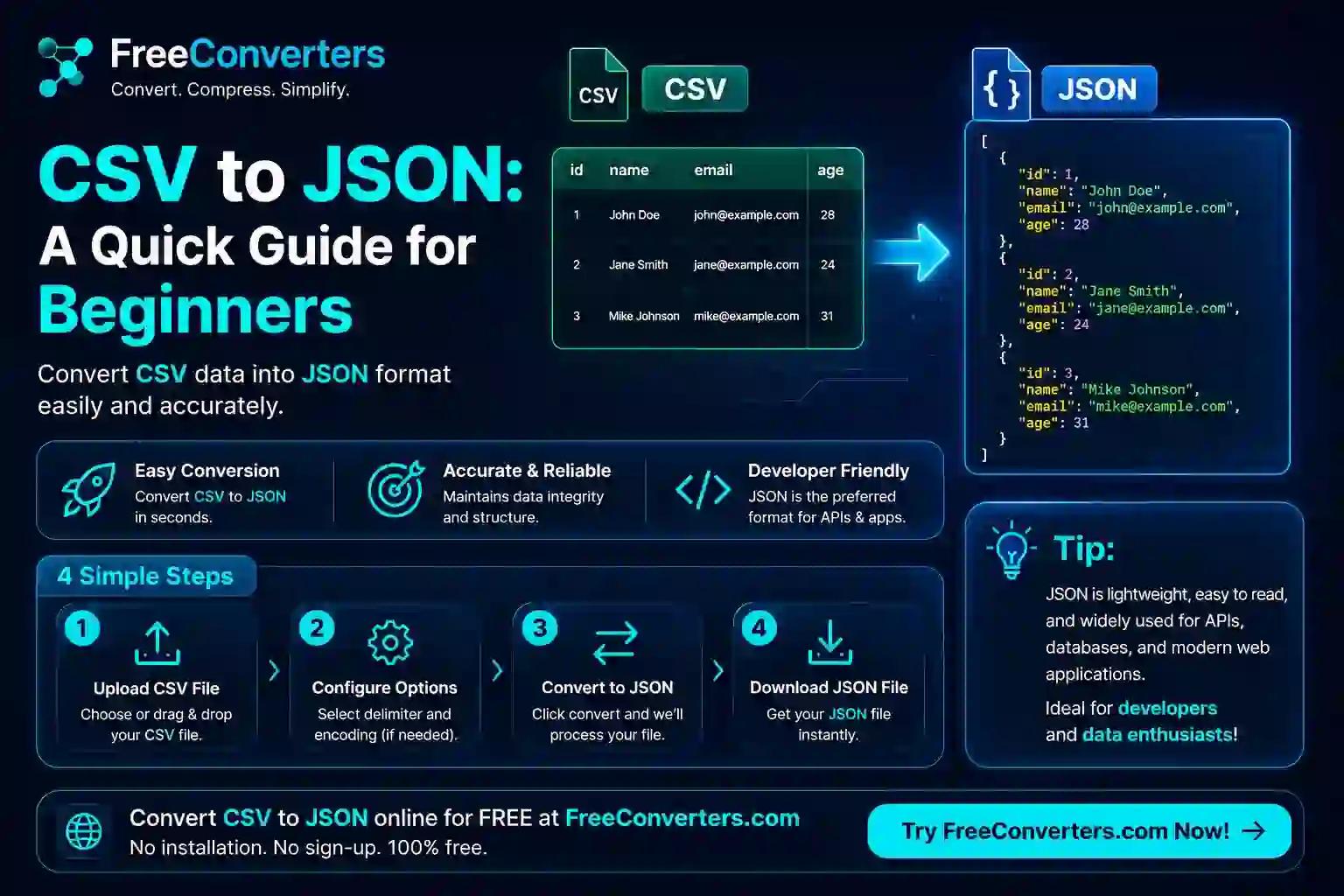
CSV to JSON: A Quick Guide for Beginners
CSV stores data as flat, comma-separated rows — think of a spreadsheet saved as plain text. JSON stores that same data as structured key-value pairs, which most modern apps, APIs, and databases actually expect. Converting between the two takes seconds with a free online tool, or one line of code if you're comfortable with Python or JavaScript — and this guide walks through both paths clearly, starting with the no-code option.
If you've ever exported data from Excel or Google Sheets and then hit a wall trying to feed it into an API, a JavaScript app, or a NoSQL database, this is almost certainly why. Here's exactly how CSV and JSON differ, how to convert between them safely, and how to avoid the handful of formatting mistakes that trip up nearly every beginner the first time.
What Is CSV, and What Is JSON?
Before converting anything, it helps to actually understand what you're converting between, since the two formats represent data in fundamentally different shapes.
CSV (Comma-Separated Values) is a plain text format where each line represents one row of data, and commas separate individual values within that row. The first line typically contains column headers. It's simple, lightweight, and universally supported by spreadsheet software, databases, and virtually every programming language — which is exactly why it's remained the default export format for tabular data for decades.
JSON (JavaScript Object Notation) represents data as key-value pairs, organized into objects and arrays, and it can express nested, hierarchical relationships that CSV simply can't. Despite the name, JSON isn't tied to JavaScript specifically — it's become the de facto standard data format for APIs, web applications, and configuration files across virtually every modern programming language. If you want a broader comparison of JSON against another common structured format, our guide on XML vs. JSON for APIs covers that distinction in more depth.
A Simple Before-and-After Example
Nothing makes this clearer than seeing the actual transformation. Here's a small CSV file:
name,age,city
Sarah Khan,28,Lahore
Ahmed Ali,34,Karachi
Converted to JSON, that same data looks like this:
[
{ "name": "Sarah Khan", "age": 28, "city": "Lahore" },
{ "name": "Ahmed Ali", "age": 34, "city": "Karachi" }
]
Notice what happened structurally: each CSV row became one JSON object, and the CSV's header row (name,age,city) became the keys used in every object. The whole thing is wrapped in square brackets [ ], because you're dealing with an array — a list — of individual record objects. This "array of objects" structure is by far the most common shape you'll get from a CSV-to-JSON conversion, and it's what most APIs expect when you're sending or receiving tabular data.
Why Would You Need to Convert CSV to JSON?
This isn't a purely academic exercise — there are specific, practical reasons this conversion comes up constantly:
- API integration. Most modern web APIs expect and return JSON, not CSV, so if you're pulling data from a spreadsheet and need to send it somewhere programmatically, conversion is usually the first step.
- Web and app development. JavaScript works natively with JSON — it's essentially JavaScript's own object syntax — making it the natural format for populating web pages, mobile apps, or dashboards dynamically.
- NoSQL database import. Databases like MongoDB store documents in JSON-like formats, so importing spreadsheet data into these systems typically requires converting from CSV first.
- Data pipelines and automation. When data flows between different tools and systems, JSON's ability to represent nested, structured relationships often makes it the better intermediate format compared to flat CSV. Our broader data conversion guide covering JSON, XML, and CSV walks through how these formats fit into larger data pipelines if you want the bigger picture.
- Configuration and settings files. Many applications use JSON for config files, and sometimes tabular settings data starts life as a CSV before being restructured into JSON for the app to read.
Method 1: Convert CSV to JSON Online (No Coding Required)
This is genuinely the fastest and most beginner-friendly path, and it's worth starting here regardless of your technical background, since it requires zero setup and works entirely in your browser.
Step-by-step:
- Open a free online CSV to JSON converter. Our conversion tools page has this handled directly in your browser without any account or software installation.
- Upload your CSV file, or paste the raw CSV content directly into the input box if you don't want to upload a file.
- Preview the output. A good converter shows you the resulting JSON immediately, so you can check it looks right before downloading anything.
- Adjust formatting options if offered — some tools let you choose between a compact single-line JSON output and a "pretty printed" version with indentation, which is easier to read if you're going to inspect or edit the file manually afterward. Our JSON Formatter is useful here if your converted output comes out as one long unreadable line and you want to clean it up.
- Download the JSON file, or copy the output directly if you're pasting it into another tool or codebase.
This method works identically whether you're on Mac, Windows, or even a tablet, since the conversion happens in your browser rather than depending on your operating system. It's also the safest starting point for large or unfamiliar CSV files, since you can visually verify the output structure before using it anywhere important. If you're specifically unsure about the safety of uploading data to an online tool, our online tools safety guide covers exactly what to look for.
Method 2: Convert CSV to JSON Using Python
If you're comfortable writing a little code, or you need to convert CSV files repeatedly as part of an automated workflow, Python is genuinely one of the easiest languages for this task — largely thanks to the pandas library, which handles the entire conversion in essentially two lines.
import pandas as pd
df = pd.read_csv('data.csv')
df.to_json('data.json', orient='records', indent=2)
Here's what's actually happening: pd.read_csv() reads your CSV file into a pandas DataFrame — essentially an in-memory spreadsheet — and to_json() writes that same data out as JSON. The orient='records' argument specifically tells pandas to produce the "array of objects" structure shown in the example earlier, which is the shape most people actually want. The indent=2 argument just makes the output human-readable, with two-space indentation, rather than cramming everything onto one unreadable line.
If you don't want to use pandas, Python's built-in csv and json modules can do the same job without any external library:
import csv
import json
with open('data.csv') as csv_file:
reader = csv.DictReader(csv_file)
data = list(reader)
with open('data.json', 'w') as json_file:
json.dump(data, json_file, indent=2)
csv.DictReader automatically uses your CSV's header row as dictionary keys for each row, which conveniently produces exactly the structure you want without any manual mapping.
Method 3: Convert CSV to JSON Using JavaScript
If you're working in a browser-based or Node.js environment, JavaScript can handle this conversion natively, since JSON is fundamentally JavaScript's own object notation.
In Node.js, a simple manual approach looks like this:
const fs = require('fs');
const csvData = fs.readFileSync('data.csv', 'utf8');
const lines = csvData.trim().split('\n');
const headers = lines[0].split(',');
const jsonData = lines.slice(1).map(line => {
const values = line.split(',');
const obj = {};
headers.forEach((header, i) => {
obj[header.trim()] = values[i].trim();
});
return obj;
});
fs.writeFileSync('data.json', JSON.stringify(jsonData, null, 2));
This manual approach works fine for simple CSV files, but it has a real limitation worth knowing about upfront: it doesn't correctly handle commas that appear inside quoted fields (more on that specific pitfall below). For anything beyond a quick, simple file, most developers reach for a dedicated parsing library like papaparse or csv-parser instead, which handle these edge cases correctly out of the box:
const Papa = require('papaparse');
const fs = require('fs');
const csvData = fs.readFileSync('data.csv', 'utf8');
const result = Papa.parse(csvData, { header: true });
fs.writeFileSync('data.json', JSON.stringify(result.data, null, 2));
JSON.stringify() is the core JavaScript function doing the actual conversion here — it takes any JavaScript object or array and turns it into a JSON-formatted string, which is exactly what you need whether you're writing to a file or sending data to an API.
Convert CSV to JSON in Excel
If your data currently lives in Excel rather than a raw CSV file, you have two practical paths:
- Export to CSV first, then convert. Use Excel's "Save As" or "Export" feature to save your spreadsheet as a .csv file, then run that file through any of the methods above. This is the simplest and most reliable route for most people.
- Use Power Query for direct JSON output. Excel's built-in Power Query feature (Data tab → Get Data) can transform data and export it in various formats, though setting up a genuine JSON export through Power Query is considerably more involved than simply exporting to CSV and converting afterward.
For the vast majority of beginners, exporting to CSV first and using a dedicated converter is both faster and less error-prone than trying to configure Excel to output JSON directly.
Common CSV to JSON Formatting Pitfalls
These are the specific, real-world errors that trip up beginners constantly — and they're rarely explained clearly, which is exactly why it's worth covering them directly here.
Commas inside quoted fields. If a CSV value itself contains a comma — say, an address field like "Lahore, Punjab" — that value needs to be wrapped in quotes in the CSV. A naive converter that simply splits on every comma will incorrectly treat that quoted comma as a column separator, breaking your entire row structure. This is exactly why dedicated CSV parsing libraries (rather than a simple manual split) matter for anything beyond trivial data — they correctly recognize quoted sections and don't split inside them.
Data type mismatches. CSV files are plain text — every single value is technically a string, even numbers and true/false values. When converting to JSON, a good converter should recognize that 28 should become the number 28, not the string "28", and that true/false should become actual JSON booleans. Not every simple converter does this correctly by default, so it's worth checking your output — a number wrapped in quotes in your JSON ("28" instead of 28) can cause real problems later if your code expects to do math with that value.
Encoding issues, especially with special characters. If your CSV contains names, addresses, or text with accented characters, non-Latin scripts, or special symbols, encoding mismatches can turn readable text into garbled characters during conversion. Saving and reading your CSV file specifically as UTF-8 encoding — rather than a regional Windows encoding — resolves the vast majority of these issues, and most modern tools default to UTF-8 automatically.
Headers that don't make valid JSON keys. Spaces, special characters, or headers starting with numbers in your CSV column names can cause problems when they become JSON keys. Cleaning up header names before conversion — no spaces, no special characters, starting with a letter — avoids this entirely.
Empty or missing values. A CSV with blank cells needs a consistent decision about how those should appear in JSON — as empty strings "", as null, or omitted from the object entirely. Different converters handle this differently, so it's worth checking your specific output rather than assuming.
How to Convert CSV to Nested JSON
Sometimes a flat array of objects isn't actually what you need — you might want related data grouped hierarchically, like orders nested under customers rather than as one flat list. This genuinely requires more than a simple automatic conversion, since your original CSV structure is flat by nature and doesn't inherently know about these relationships.
The general approach:
- Identify the grouping key in your CSV (say, a customer_id column shared across multiple order rows)
- Convert the flat CSV to JSON first, using any of the methods above
- Write a short script (Python is well-suited for this) that loops through the flat records and groups them under their shared key, building the nested structure programmatically
This is genuinely a step beyond basic CSV-to-JSON conversion — it's closer to data transformation than pure format conversion — so if you find yourself needing nested output regularly, it's worth learning just enough Python or JavaScript to write this grouping logic yourself, since no generic converter tool can reliably guess your intended nesting structure from a flat file alone.
Is It Safe to Use Online CSV to JSON Converters?
This is a fair question, especially if your CSV contains any sensitive or personal data. A few things worth checking before uploading anything sensitive:
- Does the tool process files in-browser or upload to a server? Browser-based processing means your data technically never leaves your device, which is the safer option for anything containing personal or business-sensitive information.
- Is there an HTTPS connection? A converter site without https:// in the URL shouldn't be trusted with any real data.
- Does the tool require unnecessary account creation or personal details just to convert a file? Legitimate converters generally don't need your email address for a basic format conversion.
- Is there a stated data retention policy? Trustworthy tools are explicit about not storing your uploaded files, or deleting them automatically within a short window.
For a deeper look at exactly how browser-based converters handle your files behind the scenes, our privacy guide for online converters walks through what actually happens to your data during conversion, regardless of which specific tool you end up using.
How to Convert JSON Back to CSV
It's worth knowing this works in reverse too, since you'll sometimes need to go the other direction — say, exporting API data into a spreadsheet-friendly format for a non-technical colleague.
In Python with pandas:
import pandas as pd
df = pd.read_json('data.json')
df.to_csv('data.csv', index=False)
Online, the same conversion tools that handle CSV-to-JSON typically handle the reverse direction too — upload your JSON, select CSV as the output format, and download the flattened result. One caveat worth knowing: if your JSON has deeply nested structures, converting back to flat CSV requires flattening that hierarchy first, since CSV simply can't represent nested relationships the way JSON can.
Frequently Asked Questions
How do I convert a CSV file to JSON? The fastest method is uploading your file to a free online converter, which handles the conversion in your browser in seconds; for repeatable or automated conversions, a short Python script using pandas or the built-in csv and json modules works well too.
What is the difference between CSV and JSON? CSV is a flat, plain-text format organized in rows and columns, while JSON is a structured format using key-value pairs that can represent nested, hierarchical relationships CSV cannot express.
Can I convert CSV to JSON without coding? Yes — free online converter tools handle this entirely through file upload or paste-and-convert, with no programming knowledge required.
Is it safe to use online CSV to JSON converters? Generally yes, provided the tool uses HTTPS, processes files without requiring unnecessary account creation, and ideally handles conversion directly in your browser rather than storing your data on a remote server.
How do I convert CSV to JSON in Python? The pandas library makes this a two-line task — read the CSV with pd.read_csv(), then export with df.to_json(orient='records') — or use Python's built-in csv.DictReader paired with the json module if you'd rather avoid an external library.
Why would I need to convert CSV to JSON? Common reasons include feeding spreadsheet data into an API, importing data into a JavaScript application or NoSQL database, or preparing data for a pipeline where JSON's structured format is the expected input.
Can Excel convert CSV to JSON directly? Not simply — the practical route is exporting your Excel file to CSV first using "Save As," then running that CSV through a dedicated converter, since Excel's native JSON export options through Power Query are considerably more involved.
How do I convert JSON back to CSV? Use pd.read_json() followed by df.to_csv() in Python, or run your JSON file through the reverse direction of most online CSV/JSON converter tools — just note that deeply nested JSON needs to be flattened first, since CSV can't represent hierarchical data.
The Bottom Line
Converting CSV to JSON isn't complicated once you understand what's actually changing shape — flat rows becoming structured key-value objects — and for most beginners, a free online converter handles this perfectly well without touching a line of code. If you're working with data regularly enough to want automation, Python's pandas library is genuinely the easiest entry point into scripting this yourself, and it's worth learning even if you don't consider yourself a programmer.
Whichever path you take, watch for the formatting pitfalls covered above — quoted commas, data type mismatches, and encoding issues account for the vast majority of "why does my JSON look wrong" problems beginners run into. Start with our CSV and JSON conversion tools for a quick, no-install conversion, and if you're building out a larger data workflow involving multiple formats, our complete guide to JSON, XML, and CSV conversion is a solid next read.