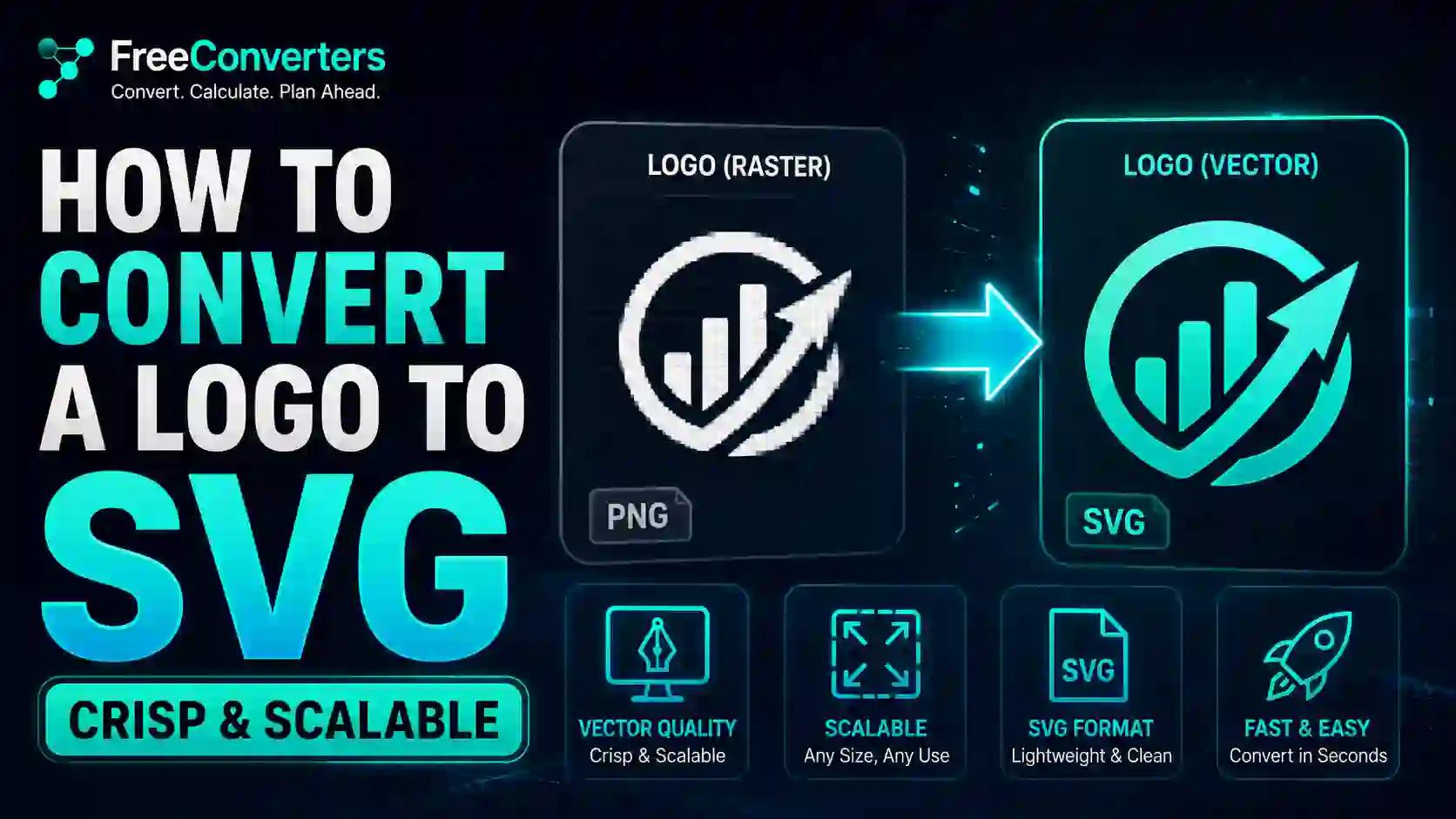
How to Convert a Logo to SVG (Crisp & Scalable)
Ever stretched a logo for a banner or a business card and watched it turn into a blurry, pixelated mess? That's what happens when you scale a raster image — a PNG or JPG — beyond its native resolution. The fix isn't a bigger file. It's a different file format entirely: SVG.
This guide walks through exactly how to convert a logo to SVG, why it matters for anything from a favicon to a billboard, and which tools actually get the job done without wrecking the details your brand depends on.
What Is an SVG File, Exactly?
SVG stands for Scalable Vector Graphics, and according to MDN Web Docs, it's an XML-based markup language for describing two-dimensional vector graphics, built as a text-based, open web standard designed to render cleanly at any size. Instead of storing a grid of colored pixels like a PNG or JPG does, an SVG file stores mathematical instructions — points, curves, and paths — that tell a browser or design program exactly how to draw each shape.
That distinction is the entire reason SVG exists as a format. A pixel-based image has a fixed number of dots. Stretch it past that fixed size, and the software has to guess what should fill the gaps, which is exactly where blur and pixelation come from. A vector file has no fixed size at all — it recalculates the shape at whatever dimensions you need, whether that's a 16-pixel favicon or a 40-foot banner.
Raster vs Vector: Why Your Logo Needs Both, But Mostly Vector
Every logo file falls into one of two categories, and understanding the difference explains almost everything about why SVG conversion matters.
Raster (bitmap) images — PNG, JPG, WEBP — are built from a fixed grid of pixels. They're great for photographs and complex color gradients, but they have a hard resolution ceiling. Once you scale past that ceiling, quality degrades visibly.
Vector images — SVG, EPS, AI — are built from mathematical paths rather than pixels. They scale infinitely without any loss of sharpness, which is exactly why virtually every professional logo is designed in vector format first, then exported to raster formats only when needed for specific uses like social media avatars.
If you're unsure which format actually makes sense for a given use case, our detailed comparison of SVG vs PNG for logos and icons breaks down exactly when each format wins.
Raster (PNG/JPG): Built from a pixel grid. Loses quality when scaled. Larger file sizes for complex images. Not editable as shapes after export. Best for photos, textures, and gradients. Universal browser support.
Vector (SVG): Built from mathematical paths. Scales without any quality loss. Smaller file sizes for simple logos and icons. Fully editable as shapes after export. Best for logos, icons, and line art. Supported by 99%+ of modern browsers.
Why Convert Your Logo to SVG in the First Place
A logo isn't used just once. It ends up on your website header, your favicon, your business cards, a trade show banner, a mobile app icon, and probably a hundred other places you haven't thought of yet. Each of these uses demands a different size, and SVG is the only common format that handles all of them from a single source file.
It stays sharp at every size. Whether your logo renders at 24 pixels in a browser tab or two meters wide on a storefront sign, an SVG source maintains identical crispness, because the file describes shapes mathematically rather than storing a fixed pixel count.
It loads faster on websites. For simple logos and icons, SVG files are typically smaller than their PNG equivalents, which directly improves page load speed — a factor that affects both user experience and search ranking. Our guide on compressing images for speed, storage, and SEO covers this connection in more detail if you're optimizing a full website, not just a logo.
It's editable after export. Because SVG stores actual path data rather than pixels, you can open the file in a code editor or design tool and tweak colors, stroke widths, or individual shapes without needing the original design software or files.
It supports animation and interactivity. Modern web design frequently uses animated SVG logos — a subtle color shift on hover, a drawing animation on page load — none of which is possible with a static raster file.
How to Convert a Logo to SVG: Step-by-Step
There are two realistic paths here, depending on what you're starting with.
Path 1: You Already Have a Vector Source File
If your logo was originally designed in Adobe Illustrator, Figma, Canva Pro, or Inkscape, you likely already have access to a true vector version, and exporting it to SVG is straightforward.
- Open the original design file in the software it was created in.
- Select the logo artwork you want to export.
- Choose "Export As" or "Save As" and select SVG from the format list.
- Check the export settings — most design tools let you choose whether to embed fonts, flatten layers, or minify the code output.
- Save the file and test it by opening it in a browser or dragging it into a design tool to confirm shapes and colors rendered correctly.
This path preserves perfect quality because you're exporting directly from vector data — no guessing, no tracing, no approximation involved.
Path 2: You Only Have a Raster Logo (PNG or JPG)
This is the far more common scenario — plenty of small businesses only have a low-resolution PNG their previous designer sent them years ago. In this case, you need to trace or vectorize the raster image into vector paths.
- Start with the highest resolution version you have. Vectorization software analyzes pixel edges to reconstruct shapes, so a higher-resolution source gives cleaner, more accurate results.
- Upload the image to a PNG to SVG converter. Our own PNG to SVG converter handles this automatically, tracing the pixel edges into clean vector paths in seconds.
- Review the auto-traced output carefully. Automatic tracing works well for simple logos with solid colors and clean edges, but can struggle with gradients, fine text, or complex shading.
- Clean up the paths if needed. For logos with intricate detail, opening the traced SVG in Inkscape (free) or Adobe Illustrator lets you manually smooth curves, merge stray paths, or simplify overly complex node structures.
- Optimize the final file. Run the SVG through a minifier or cleanup tool to strip unnecessary metadata, which keeps the file size small for web use.
If your starting image is a JPG instead of a PNG, the same logic applies — just start by converting through our image converter first if the file needs any format cleanup before tracing.
Free vs Paid SVG Converters: What Actually Matters
Not every converter produces the same quality output, and the price tag doesn't always predict which one wins.
Free browser-based converters (like our own PNG to SVG tool) are genuinely sufficient for most simple logos — geometric shapes, single-color icons, or clean line-based branding. They're fast, require no software installation, and cost nothing.
Inkscape is free, open-source, and includes a powerful "Trace Bitmap" feature that gives you far more manual control over tracing parameters than most online tools — color thresholds, edge detection sensitivity, and path smoothing.
Adobe Illustrator's Image Trace is the industry standard for professional design work, offering the most sophisticated tracing algorithms available, along with full manual path editing. It's the right choice if your logo has gradients, fine detail, or complex shading that simpler tools struggle with.
CorelDRAW's PowerTRACE is a strong alternative to Illustrator, particularly popular among designers already working in the Corel ecosystem, with comparable tracing quality.
The honest advice here: start with a free tool. If the automatic trace looks clean, you're done. If it looks rough around text or gradients, that's your signal to move up to Inkscape or Illustrator for manual cleanup.
Common Mistakes When Converting Logos to SVG
Starting from a tiny, low-resolution image. A 100×100 pixel PNG saved from a website years ago doesn't contain enough detail for clean tracing. Always track down the highest-resolution source available before converting.
Ignoring the auto-traced result. Automatic vectorization is a starting point, not a finished product, especially for anything beyond simple geometric logos. Always open the result and check for jagged edges, merged shapes, or lost detail before publishing it anywhere.
Forgetting to optimize file size. A poorly optimized SVG can carry unnecessary metadata, editor-specific comments, and redundant path data, all of which bloat file size without adding any visual value. Running the file through an optimizer before deployment keeps load times fast.
Skipping a visual quality check across sizes. Test your converted SVG at multiple sizes — favicon-small and billboard-large — since occasionally a trace that looks perfect at one size reveals stray artifacts at extreme scales.
A Real-World Before-and-After Example
Picture a small bakery logo — a hand-drawn wheat stalk icon next to script-style text — that only exists as a 300×300 pixel PNG saved from an old Facebook page. Blown up to fit a storefront sign template, the wheat stalk edges turn into a staircase of visible pixels, and the script text loses its fine strokes entirely.
Running that same PNG through a vectorization process changes the outcome completely. The wheat stalk edges become smooth mathematical curves instead of pixel steps, and even though the automatic trace initially merges two of the thinner wheat lines, five minutes of manual cleanup in Inkscape separates them again. The final SVG scales cleanly from a tiny app icon up to a wall-sized print, something the original PNG could never do without visible quality loss.
This is the practical value of vectorization — it's not just a technical upgrade, it's the difference between a logo that works everywhere and one that only works at the single size it was originally saved at.
SVG Beyond Logos: Where Else It Matters
Once you understand SVG conversion, you'll notice the same logic applies well beyond just logos. Icon sets, illustrations, infographics, and even certain chart types all benefit from the same scalability and small file size that make SVG the right choice for branding work.
If you're managing a broader set of website assets, our guides on choosing the best image sizes for websites and comparing PNG vs JPG vs WEBP round out the picture for when raster formats are still the right call, and when vector formats should take over instead.
Frequently Asked Questions
What is an SVG file? SVG stands for Scalable Vector Graphics, an XML-based image format that describes graphics using mathematical paths instead of pixels. This allows SVG images to scale to any size without losing sharpness, unlike raster formats such as PNG or JPG.
Why should I convert my logo to SVG? Converting your logo to SVG ensures it stays crisp at every size, from a tiny favicon to a large printed banner, while also keeping file sizes small and load times fast on your website. It's the standard format professional designers use for brand assets.
How do I convert a PNG logo to SVG for free? Upload your PNG file to a free online PNG to SVG converter, which automatically traces the pixel edges into vector paths. For simple, clean logos this usually produces a ready-to-use result in seconds, though complex designs may need manual touch-up in Inkscape afterward.
Does converting to SVG reduce image quality? No, when done correctly, converting to SVG actually improves how your logo displays, since the resulting file scales without any quality loss. The only quality risk comes from starting with a very low-resolution source image, which limits how accurately the tracing software can reconstruct fine details.
Which software is best for converting logos to SVG? Free online converters work well for simple logos with solid colors and clean edges. For logos with gradients, fine text, or intricate detail, Adobe Illustrator's Image Trace or Inkscape's Trace Bitmap feature give far more control over the final result.
Can I edit an SVG logo after conversion? Yes. Because SVG stores actual path and shape data rather than pixels, you can open the file in Illustrator, Inkscape, or even a plain text editor to adjust colors, resize elements, or modify individual shapes without needing the original design software.
Final Takeaway
A logo that only looks good at one size isn't finished — it's incomplete. Converting to SVG isn't a nice-to-have design step; it's what makes a brand mark actually usable across every surface it needs to appear on, from a browser tab to a trade show banner. Start with the highest-resolution source you can find, run it through a converter, and always give the result a manual check before it goes live anywhere.
Ready to see it in action? Upload your logo to our free PNG to SVG converter and get a clean, scalable vector file in seconds — no software installation, no learning curve, just a crisp logo ready for wherever your brand shows up next.