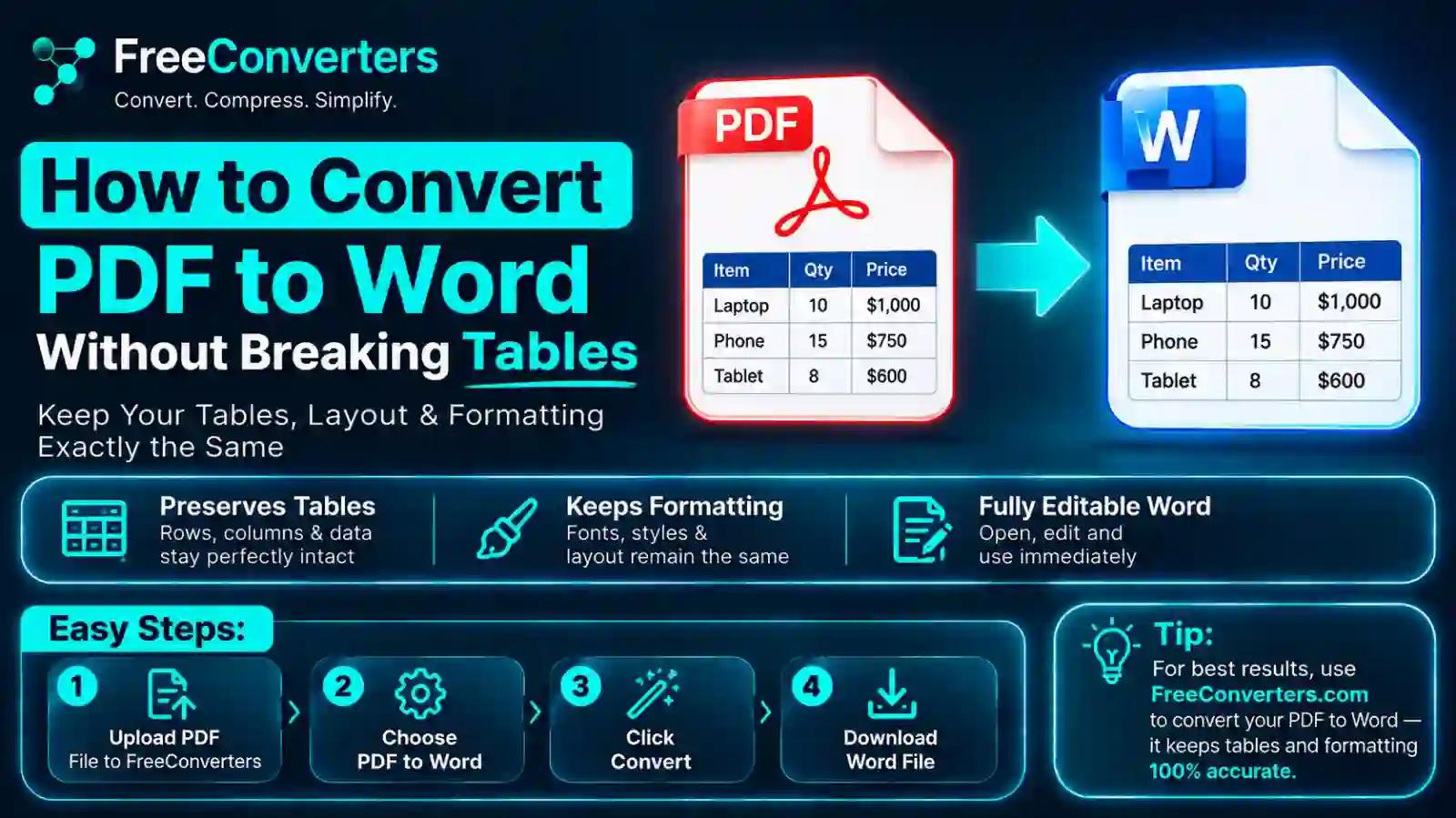
PDF to Word Tables: How to Keep Tables Intact (2026 Guide)
Tables break during PDF to Word conversion because most PDFs don't actually store tables as structured data — they store rows and columns as individually positioned lines of text and border graphics, so a converter has to reconstruct the table from scratch rather than simply "reading" it. The fix is using a converter with genuine table-recognition technology (not just basic text extraction), matching your conversion method to whether the PDF is digitally created or scanned, and doing a quick manual review of anything with merged cells or multi-page tables.
This guide walks through exactly why this happens, how to convert PDF tables into clean, editable Word tables step by step, and what to do when a conversion still comes out looking wrong.
Why PDF Tables Break in the First Place
A PDF isn't a document format in the way Word is — it's fundamentally a fixed-layout format designed to look identical everywhere it's opened. When you create a table in a PDF (whether from Excel, Word, or design software), that table gets "flattened" into a collection of positioned text strings and drawn lines, with no underlying data structure telling a converter "this is a table with 4 columns and 12 rows."
This is the core reason tables cause more conversion problems than plain paragraphs. A paragraph of text is just... text, flowing naturally. A table depends entirely on spatial relationships — which piece of text sits in which cell, which lines represent borders, which gaps represent column breaks — and a converter has to infer all of that from position alone, then rebuild it as an actual Word table object with real rows, columns, and cells.
Digital-Native PDFs vs. Scanned PDFs: Two Completely Different Problems
This distinction matters more than almost anything else in this topic, so it's worth being explicit about it upfront.
Digital-native PDFs (created directly from Word, Excel, Google Docs, or similar software) contain actual embedded text with positioning data, even though there's no table structure tag. A good converter can usually detect the alignment patterns — text starting at consistent horizontal positions across multiple lines — and infer a table structure with reasonably high accuracy.
Scanned PDFs are fundamentally different: they're just images of a page, with no embedded text at all. Converting these requires OCR (Optical Character Recognition) first, which reads the visual image and guesses at both the text content and the table structure simultaneously. This is meaningfully harder, and it's why scanned table conversions are more error-prone than digital-native ones, regardless of which tool you use.
Step-by-Step: Converting a PDF to Word Without Breaking Tables
Step 1: Identify Whether Your PDF Is Digital-Native or Scanned
Try selecting text in the PDF with your cursor. If you can highlight and copy individual words normally, it's digital-native. If clicking and dragging just selects the whole page like an image, it's scanned, and you'll need OCR-based conversion specifically.
Step 2: Choose a Converter With Dedicated Table Recognition
Not all "PDF to Word" tools handle tables the same way — many are built primarily for flowing text and treat tables as an afterthought, dumping table content into a text box or a series of tab-separated lines instead of an actual Word table. Use a PDF to Word converter built to detect table structures specifically, rather than one optimized purely for paragraph text.
Step 3: Upload and Convert
Upload your file and let the converter process it. For digital-native PDFs, this is typically fast and accurate. For scanned documents, expect the process to take a bit longer since OCR analysis is more computationally intensive — and if you're starting from a scanned document specifically, this guide on converting a scanned PDF to Word covers the OCR-specific considerations in more depth.
Step 4: Open the Result and Check Table Boundaries First
Before checking anything else, click into the converted table and confirm it's an actual Word table object (you should see table gridlines and a "Table Tools" ribbon appear when you click inside it), not a text box with tab-separated content pretending to look like a table. This single check tells you immediately whether the conversion actually succeeded structurally, regardless of how the content looks at a glance.
Step 5: Review Row and Column Alignment
Scan each row for cells that have shifted, merged incorrectly, or split content across the wrong columns — this is the most common failure point, especially where the original PDF table had merged header cells or inconsistent column widths.
Step 6: Check Multi-Page Tables Specifically
If your original table spans multiple pages, verify that the converted version didn't split it into separate, disconnected tables with a formatting break in between. This is one of the trickier scenarios for any converter, since the tool has to recognize that a table restarting on the next page is a continuation, not a new table.
Step 7: Fix Remaining Formatting Issues Manually
Even a good conversion often needs minor manual touch-ups — re-adding lost borders, adjusting column widths that came out slightly off, or fixing a header row that didn't carry its bold formatting. This is normal and expected, not a sign the tool failed; treat it as a five-minute cleanup pass rather than a full rebuild.
Comparison: How Different Tools Handle Table Conversion
Browser-based converters with table detection — Good for standard tables; struggles with heavily merged cells. Requires OCR mode specifically. Free/freemium.
Adobe Acrobat (Export PDF feature) — Strong for digital-native PDFs; better than most free tools. Built-in OCR, generally reliable. Paid subscription.
Basic online "PDF to Word" converters (text-focused) — Often converts tables to text boxes or loses structure entirely. Limited or no OCR. Free.
Microsoft Word's native "Open PDF" feature — Moderate — works but often needs cleanup. No OCR for scanned files. Included with Word.
Adobe Acrobat generally produces the most reliable table conversions for complex, heavily formatted documents, which makes sense given it's built by the same company responsible for the PDF format itself — but a well-built free tool handles the vast majority of standard business tables (invoices, simple reports, basic data grids) perfectly well, and is the more practical choice if you're converting occasionally rather than as a daily workflow.
When to Convert to Excel Instead of Word
This is worth addressing directly, because it's genuinely the better choice in specific situations. If your PDF table is primarily numerical data you intend to calculate, sort, or filter — a financial statement, an inventory list, a pricing sheet — converting to Excel rather than Word preserves the data in a format built for that purpose, rather than forcing tabular data into a document format that treats tables as a visual layout element rather than functional data.
Use Word when the table is part of a larger document with surrounding text — a report, a contract, an academic paper — where the table needs to sit within flowing content. Use Excel when the table is the document, and you need to actually work with the numbers afterward.
Fixing a Broken Table After Conversion
If you've already converted a file and the table came out wrong, here's the practical path to fixing it rather than starting over.
If the table converted as a text box or plain text with tabs: Select the entire block, then use Word's "Convert Text to Table" feature (found under Insert > Table), which lets you specify the number of columns and how the original tool separated data (tabs, commas, or paragraph marks). This often rescues content that didn't convert as a proper table at all.
If columns are misaligned: Click into the table and manually drag column borders to correct widths, or use Word's "AutoFit" feature to let it redistribute column widths based on content automatically.
If cells that should be merged are showing as separate: Select the cells that should be combined, right-click, and choose "Merge Cells" — this is common with header rows that spanned multiple columns in the original PDF.
If borders or shading are missing: Reapply table styling through the Table Design tab rather than manually redrawing every border — Word's built-in table styles can restore a clean, professional look in a few clicks.
Common Table-Breaking Scenarios and Why They Happen
Merged header cells — When a PDF table has a header spanning multiple columns (like "Q1 2026" sitting above three sub-columns), converters sometimes misread this as one oversized cell or, conversely, split it incorrectly across the columns beneath it.
Borderless tables — Some PDF tables use whitespace and alignment alone, with no visible gridlines, to imply table structure. These are genuinely harder for any converter to detect, since there's no drawn line data to anchor the table recognition — the tool has to infer structure purely from text positioning.
Nested tables — A table within a table (common in complex forms or financial documents) confuses most converters, which typically expect a single flat grid rather than a hierarchical structure.
Font and spacing shifts — Even when the table structure converts correctly, fonts sometimes substitute to a default typeface if the original PDF used an embedded font the converter doesn't recognize, which can throw off column widths that were originally sized to fit specific text.
Practical Tips for Better Results Before You Even Convert
- If you control the source document, export directly from the original file (Word, Excel, Google Docs) to PDF using "Save As" rather than printing to PDF, since a proper export preserves more underlying structure than a print-to-PDF pass, which flattens everything into pure visual output.
- For scanned documents, use the highest scan resolution available — OCR accuracy for table detection improves noticeably with cleaner, higher-resolution source images, since blurry or low-contrast scans make it harder for OCR to distinguish gridlines from noise.
- Break extremely complex tables into smaller sections where possible, if you have any control over the source, since simpler table structures convert more reliably than deeply nested or heavily merged ones.
- Always keep your original PDF until you've fully verified the converted table, so you have a reference to check against rather than guessing whether a number or cell placement looks right.
PDF to Word Conversion Beyond Tables: When You Need the Whole Document
Tables are usually the hardest part of a PDF-to-Word conversion, but they're rarely the only consideration. If you're converting a full document — a report, contract, or form — for broader editing, this guide on Word to PDF and PDF to Word conversion covers the full round-trip process, and this comparison of when to send a PDF vs. a Word document is useful if you're deciding which format actually serves your end goal before you even start converting.
If your document needs to go the other direction afterward — back into PDF once your table edits are done — a Word to PDF converter handles that final step, and this complete guide to Word to PDF conversion walks through formatting considerations for that direction specifically.
Frequently Asked Questions
Why do tables break when converting PDF to Word? PDFs store tables as positioned text and drawn lines rather than structured data, so a converter has to reconstruct the row-and-column relationships by inferring them from spatial positioning. This reconstruction process is where misalignment, merged cell errors, and lost formatting most commonly occur.
What is the best PDF to Word converter that keeps tables intact? For digital-native PDFs, converters with dedicated table-recognition technology handle standard business tables reliably. For complex or heavily formatted tables, Adobe Acrobat's export feature generally produces the most accurate results, though it requires a paid subscription.
Can I convert a scanned PDF table to Word accurately? Yes, but accuracy is lower than with digital-native PDFs since scanned tables require OCR to read both the text and the table structure from an image. Higher-resolution scans with clear, well-defined gridlines convert more accurately than blurry or low-contrast scans.
How do I fix a broken table after converting PDF to Word? If the table converted as plain text or a text box, use Word's "Convert Text to Table" feature to rebuild the structure. For misaligned columns or missing merges, manual adjustments through Word's Table Tools (column width dragging, cell merging, border restyling) typically resolve the issue faster than reconverting.
Is it better to convert PDF tables to Word or Excel? Convert to Excel if the table contains primarily numerical data you plan to calculate, sort, or filter. Convert to Word if the table is part of a larger document with surrounding text, since Word handles mixed content (text and tables together) more naturally than Excel does.
Does Adobe Acrobat preserve table formatting when converting PDFs? Generally yes, and often more reliably than free alternatives, particularly for complex or heavily formatted tables, since Acrobat is built with deep knowledge of the PDF format's internal structure.
Why does my converted table lose its borders or alignment? This typically happens when the original PDF table relied on whitespace alignment rather than visible gridlines, giving the converter less structural data to work with, or when an embedded font substitution shifts text positioning enough to throw off column widths.
Can free PDF to Word converters handle complex tables? Free converters handle standard tables (simple grids, basic headers) well in most cases, but tables with merged cells, nested structures, or multi-page spans are more likely to need manual cleanup afterward regardless of which tool — free or paid — you use.
Final Takeaway
Table conversion problems come down to one core issue: PDFs don't store tables as real structured data, so every converter is essentially reverse-engineering the table from visual positioning alone. Choosing a tool with genuine table-recognition capability, matching your approach to whether the source is digital-native or scanned, and doing a quick structural check immediately after conversion will save you from the frustrating cycle of reconverting the same file repeatedly hoping for a cleaner result.
If you've got a table-heavy PDF sitting in your downloads folder right now, run it through the PDF to Word converter and check the result against the structural checklist above before deciding whether it needs manual cleanup — most standard business tables convert cleanly on the first pass.