WebP to PNG: How to Convert WebP Images Easily
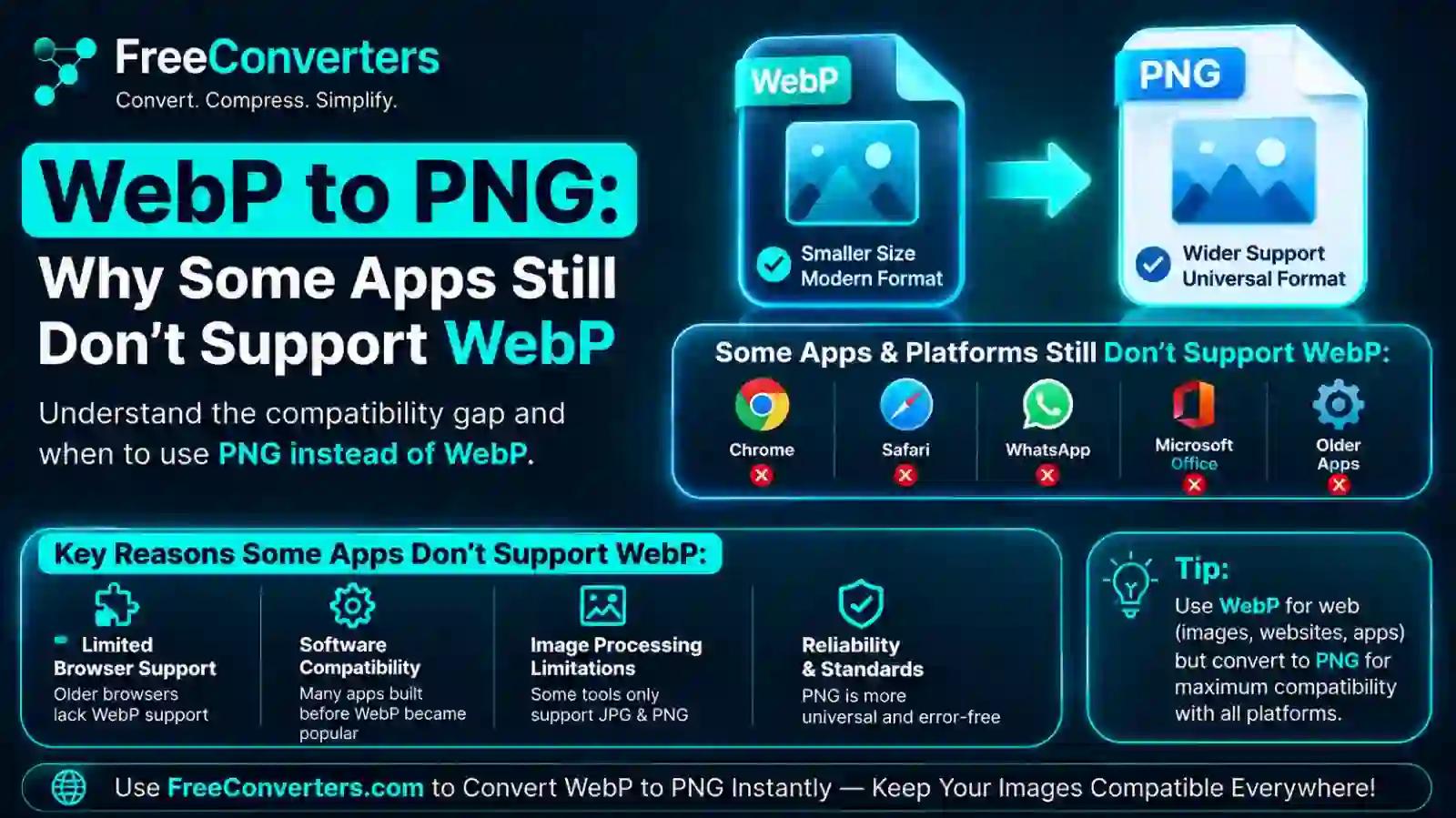
If you've ever tried opening a WebP image in an older photo viewer, pasted one into a Word document, or attached one to an email only to get a broken image icon, you've run into a compatibility gap that's more common than most people realize. WebP has been around since 2010, and most modern browsers handle it fine — but plenty of desktop software, mobile apps, and even some newer tools still don't open it natively. The core reason comes down to a mix of slow software update cycles, apps that were built before WebP existed, and developers who simply haven't prioritized adding support for a format most users don't request by name.
This guide breaks down exactly why that gap still exists in 2026, which specific apps and platforms still struggle with WebP, and the fastest ways to convert WebP to PNG or JPG so you're never stuck with a file you can't open.
What Is WebP, and Why Does Compatibility Still Vary?
WebP is a modern image format developed by Google and first released in 2010, designed specifically to produce smaller file sizes than JPEG or PNG while preserving comparable image quality. It supports both lossy compression (similar to JPEG, where some image data is discarded to shrink file size) and lossless compression (similar to PNG, where no data is lost), plus features like alpha channel transparency and animation — essentially combining what JPEG, PNG, and GIF each do separately into one format.
On paper, that makes WebP the more efficient choice for nearly everything. In practice, adoption has been uneven, and that unevenness is exactly why compatibility issues persist over a decade after the format's release.
The Real Reasons Some Apps Still Don't Support WebP
Legacy codebases move slowly. A huge amount of software in daily use — older versions of Windows Photo Viewer, certain enterprise tools, and specific versions of Microsoft Office — was built around image-handling libraries that predate WebP's widespread adoption. Adding a new image format isn't a small patch; it requires updating the underlying decoding libraries the software depends on, and for software that isn't actively maintained, that update simply never happens.
Licensing and technical overhead. While WebP itself is royalty-free, integrating support for a new codec still requires development time, testing, and long-term maintenance commitment. For smaller or niche apps with limited engineering resources, that's a real cost against a feature many users won't specifically ask for.
Format adoption happens unevenly across ecosystems. Web browsers adopted WebP relatively fast because Google had a direct incentive — Chrome, and by extension the broader web, benefited enormously from faster-loading images. Desktop software, printers, older mobile devices, and third-party plugins had no equivalent pressure to adopt quickly, so support has trickled in far more slowly and inconsistently.
Some platforms intentionally standardize on other formats. Certain messaging apps, printing services, and content management systems still default to JPEG or PNG for internal processing, even if they technically accept a WebP upload — meaning the file gets silently converted, sometimes with unexpected quality or transparency loss along the way.
WebP vs PNG vs JPEG: The Core Differences
Before getting into which apps struggle with WebP, it helps to understand what you're actually gaining or losing when a file gets converted away from it.
Feature: Compression type | WebP: Lossy or lossless | PNG: Lossless only | JPEG: Lossy only Feature: Transparency support | WebP: Yes (alpha channel) | PNG: Yes (alpha channel) | JPEG: No Feature: Animation support | WebP: Yes | PNG: No (requires APNG) | JPEG: No Feature: Typical file size | WebP: Smallest | PNG: Largest (lossless) | JPEG: Small-medium Feature: Universal app support | WebP: Improving, still inconsistent | PNG: Near-universal | JPEG: Near-universal Feature: Best use case | WebP: Web images, faster load times | PNG: Graphics needing transparency, editing | JPEG: Photos, general sharing
The transparency point matters more than people expect. If you convert a WebP image with a transparent background into JPEG, that transparency is lost entirely, since JPEG has no alpha channel — the transparent areas typically get filled with white or black. Converting to PNG instead preserves transparency, which is exactly why "WebP to PNG" is the more common conversion request compared to WebP to JPEG when the image has a transparent background.
Compatibility Table: Where WebP Still Runs Into Trouble
Here's a realistic breakdown of where WebP support stands across common platforms and tools, along with the practical workaround for each.
App / Platform: Chrome, Firefox, Edge, Safari (current versions) | WebP Support: Full native support | Workaround: None needed
App / Platform: Older Safari versions (pre-2020) | WebP Support: Limited or no support | Workaround: Convert to PNG/JPEG before use
App / Platform: Adobe Photoshop | WebP Support: Requires a plugin or recent CC update for full support | Workaround: Use a WebP-to-PNG converter first, or install the WebP plugin
App / Platform: Microsoft Word / Office (older versions) | WebP Support: No native support | Workaround: Convert to PNG before inserting
App / Platform: Older Windows Photo Viewer | WebP Support: No native support | Workaround: Convert to PNG/JPEG, or use a third-party viewer
App / Platform: macOS Preview (recent versions) | WebP Support: Generally supported | Workaround: None needed on updated systems
App / Platform: WhatsApp | WebP Support: Displays WebP as stickers, not standard photos | Workaround: Convert to PNG/JPEG before sending as a photo
App / Platform: Older Android/iOS versions | WebP Support: Inconsistent | Workaround: Convert before sharing to guarantee display
App / Platform: Many printers and print software | WebP Support: Frequently unsupported | Workaround: Always convert to PNG or JPEG before printing
App / Platform: WordPress (older installations without plugins) | WebP Support: Requires plugin or manual conversion | Workaround: Use a converter or update to a WebP-supporting theme/plugin
This list isn't exhaustive, and it shifts over time as software gets updated — but it captures the pattern: browsers led the way, while everything downstream of the browser has caught up unevenly.
Desktop Software: Where the Gaps Are Most Common
Desktop applications are where WebP compatibility issues show up most frequently, largely because desktop software update cycles are slower and less automatic than mobile or browser updates.
Photoshop and Adobe Creative Cloud
Photoshop's native WebP support has improved significantly in recent Creative Cloud releases, but users on older versions or those who haven't updated in a while may still find WebP files won't open directly, or require Google's official WebP plugin for Photoshop. If you're working across a team with mixed Photoshop versions, converting incoming WebP assets to PNG before distribution avoids the "why won't this open" support ticket entirely.
Microsoft Word, PowerPoint, and Older Office Versions
This is one of the most common real-world frustrations — someone downloads a WebP image, tries to insert it into a Word document or PowerPoint slide, and gets an error or simply can't select the file. Older Office versions, and even some current ones depending on OS-level image codec support, don't recognize WebP as an insertable image type. Converting to PNG first is the reliable fix, and since PNG preserves transparency and detail well, it's rarely a quality tradeoff worth worrying about for document use.
Windows Photo Viewer and Legacy Image Tools
Classic Windows Photo Viewer, still present on many systems through legacy compatibility settings, has no native WebP support at all. Windows 10 and 11 added broader format support through the Microsoft Store's WebP Image Extension, but that's an optional install most users never realize they need — which is exactly why a WebP file that "just won't open" on a Windows machine is such a common support question.
Mobile Compatibility: iOS and Android
Mobile support tells a slightly different story than desktop, since mobile operating systems update more aggressively — but there are still meaningful gaps.
iOS, Safari and the built-in Photos app have supported WebP viewing since iOS 14, but earlier versions don't display it properly, and some third-party apps built on older frameworks still choke on WebP files, particularly when the file is animated.
Android has had broader native WebP support for longer, largely because Google controls both the format and the OS, but third-party apps that haven't updated their image-handling libraries can still fail to render WebP correctly, especially older messaging and gallery apps.
WhatsApp's Specific WebP Quirk
WhatsApp deserves its own mention because it handles WebP in an unusual way: it uses the format specifically for stickers, not standard photo sharing. If you save a WebP file and try to send it as a regular photo, WhatsApp may treat it as a sticker attempt rather than a normal image, which confuses a lot of users who don't realize what's happening. Converting the file to JPEG or PNG before sending sidesteps this entirely.
Why WebP to PNG Specifically (Not Always JPEG)
When people ask how to convert WebP to PNG rather than JPEG, it's almost always about one of two things: preserving transparency, or avoiding additional compression loss on an image that might get edited further.
- Choose PNG when: the image has a transparent background, you plan to edit it further, or you need the highest fidelity possible for a logo, icon, or graphic with sharp edges and text.
- Choose JPEG when: the image is a photograph without transparency, and file size matters more than perfect edge sharpness — JPEG will generally produce a smaller file than PNG for photographic content.
If you're unsure which format actually fits your use case beyond just fixing a compatibility issue, this comparison of PNG vs JPG vs WebP breaks down the tradeoffs in more depth, and this guide on SVG vs PNG for logos and icons is worth a look if your WebP file is a graphic rather than a photo.
How to Convert WebP to PNG (Step by Step)
Converting a WebP file to PNG takes seconds and doesn't require any software installation if you use a browser-based tool.
- Locate your WebP file on your device — check your downloads folder if it came from a website, since browsers frequently save web images in WebP by default now.
- Open a WebP to PNG converter. A free WebP to PNG tool lets you upload the file directly in your browser without installing anything.
- Upload the file. Most tools accept drag-and-drop or a simple file picker.
- Download the converted PNG. The conversion typically takes seconds, and the resulting PNG will open natively in virtually any software, past or present.
- Verify transparency if relevant. If your original WebP had a transparent background, quickly check the converted PNG to confirm transparency carried over correctly before using it elsewhere.
If your end goal is a smaller file rather than transparency preservation, a WebP to JPG converter is the better pick, since JPEG files are typically smaller for photographic content than PNG.
Converting on Specific Devices
On Mac: Recent macOS versions can open WebP directly in Preview, but if you need a PNG specifically (for compatibility with older software or for editing), running it through an online converter is faster than exporting through Preview's format options, which aren't always available depending on your macOS version.
On iPhone: iOS doesn't include a built-in WebP-to-PNG conversion option, so a browser-based converter accessed through Safari or Chrome on your phone is the most reliable method — just upload the file from your Photos app or Files app.
On Windows: If you've installed the Microsoft WebP Image Extension, Windows can open WebP files, but converting them to PNG still typically requires either Paint (open the WebP, then "Save As" PNG) or an online converter for a faster, no-install option.
A Related, Often-Overlooked Issue: Websites Silently Saving Images as WebP
If you've noticed that images you save from websites are increasingly showing up as .webp files even when you didn't choose that format, that's not a bug — it's intentional. Many websites, including major platforms, now serve WebP images by default because they load faster, which improves site performance and search rankings. When you right-click and save an image, you often get whatever format the site served, not necessarily the format you expected.
This is part of why WebP-to-PNG conversion has become such a common everyday task rather than a niche technical need — it's less about format enthusiasm and more about needing your saved images to actually open in whatever software you're using next. If file size and loading speed are part of what's drawing you to WebP in the first place, this guide on best image sizes for websites and this one on compressing website images cover the performance side of that tradeoff.
When You Might Actually Want to Keep WebP (Not Convert It)
Conversion isn't always the right move. If you're uploading images to your own website, WebP is generally the better choice specifically because of its smaller file size — Google's own documentation on the WebP format notes that WebP lossless images are typically smaller than PNG at comparable quality, and lossy WebP images are typically smaller than comparable JPEGs. For web performance specifically, converting away from WebP usually works against you, not for you.
The compatibility concerns in this guide mostly apply to situations outside the browser — documents, presentations, older software, printing, and messaging apps — where the file needs to be opened by something that isn't a modern web browser.
Frequently Asked Questions
Why do some apps still not support WebP? Many apps were built on image-handling libraries that predate WebP's widespread adoption, and adding new format support requires development resources that smaller or less actively maintained software often doesn't prioritize. Browsers adopted WebP quickly because of direct performance incentives, but everything downstream — desktop software, printers, older devices — has caught up far more slowly.
What is the difference between WebP and PNG? WebP supports both lossy and lossless compression and typically produces smaller file sizes than PNG at similar quality, while PNG only supports lossless compression and has near-universal software compatibility. Both formats support transparency through an alpha channel.
How do I convert a WebP file to PNG? Upload the file to a free online WebP to PNG converter, which processes the conversion in your browser without requiring any software installation, then download the resulting PNG file. The process typically takes just a few seconds.
Why won't my WebP image open? This usually means the software or device you're using doesn't have native WebP support built in, which is common in older versions of Windows Photo Viewer, Microsoft Office, and some third-party apps. Converting the file to PNG or JPEG first resolves the issue immediately.
Is WebP better than PNG? For web use, WebP is generally better because it produces smaller files at comparable quality, which improves page load times. For universal compatibility across all software and devices, PNG remains the safer choice, since virtually every image tool ever built supports it natively.
Which apps don't support WebP images? Older versions of Microsoft Office, classic Windows Photo Viewer, some versions of Adobe Photoshop without the WebP plugin, and various legacy or lightly-maintained mobile and desktop apps still lack native WebP support. WhatsApp also handles WebP differently, treating it as a sticker format rather than a standard photo.
Can I convert WebP to PNG without losing quality? Yes — if the original WebP file was created using lossless compression, converting it to PNG preserves the image data without additional quality loss, since PNG is also a lossless format. If the WebP was created using lossy compression, some quality was already lost at that stage, and converting to PNG afterward won't recover it, though it won't introduce further loss either.
Final Takeaway
WebP compatibility gaps aren't a flaw in the format — they're simply a reflection of how unevenly software gets updated across a decade-plus of devices, apps, and operating systems still in active use. Browsers moved fast; everything else moved at its own pace, and some tools still haven't caught up. Until they do, converting WebP to PNG remains the fastest, most reliable fix whenever you hit a "this file won't open" wall.
If you regularly run into this issue, bookmark a WebP to PNG converter so you're never stuck waiting on an app update to open a file you need right now.