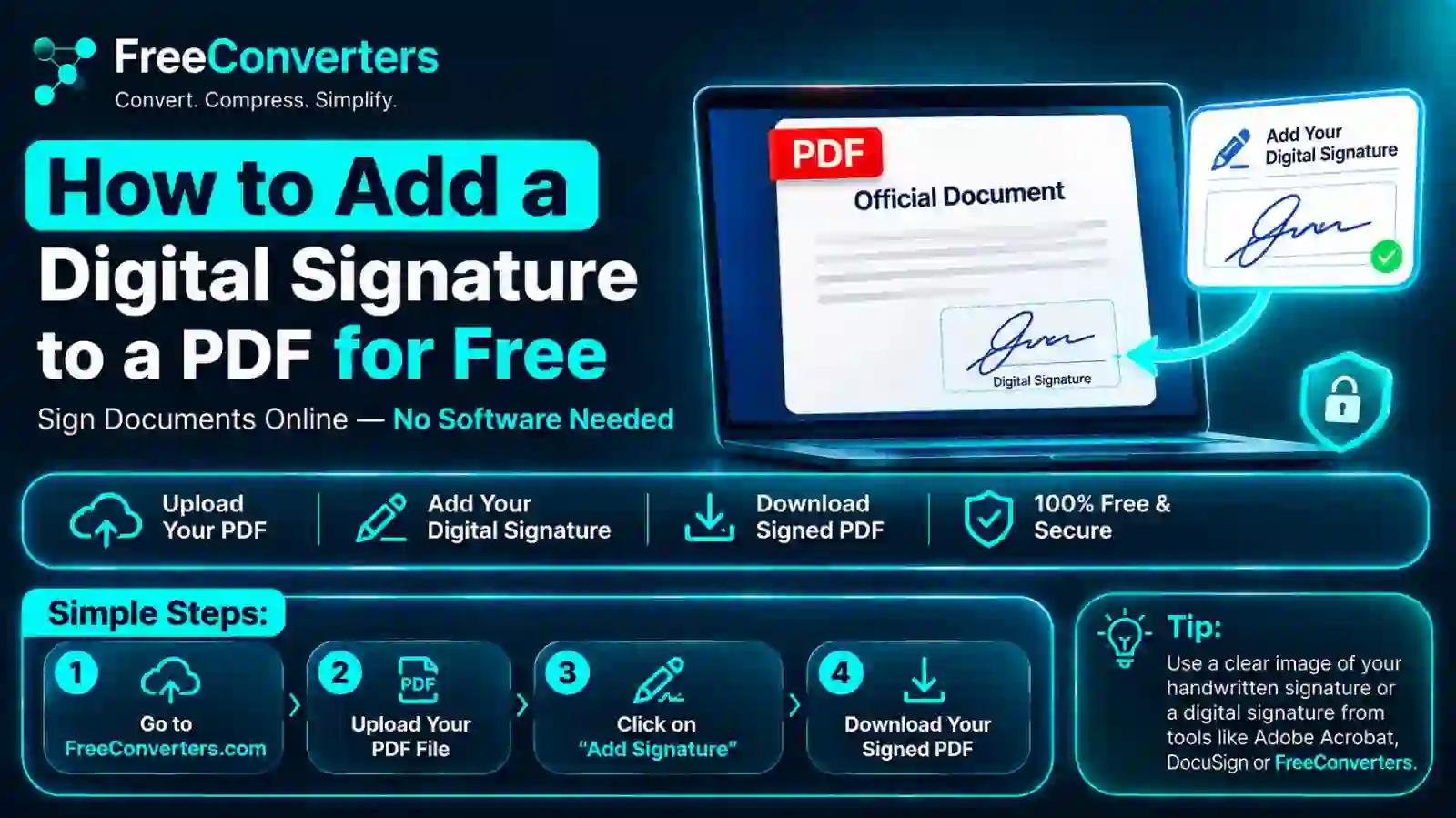
How to Digitally Sign a PDF for Free (2026 Guide)
Signing a PDF used to mean printing it, signing with a pen, scanning it back in, and emailing the file — a process that could easily eat up half an hour for a single document. Today, you can add a legally recognized digital signature to a PDF in under two minutes, without paying a cent, using tools you probably already have installed.
This guide walks through exactly how to add a digital signature to a PDF for free, explains the real difference between a digital signature and a simple electronic signature, and covers the legal side so you're not left wondering whether your signed contract will actually hold up. Whether you're signing a lease, a freelance contract, a school form, or a job offer, you'll find a method here that works on your device.
What Is a Digital Signature, Really?
People use "digital signature" and "electronic signature" interchangeably, but they're not the same thing — and the distinction matters if you ever need to prove a document is authentic.
An electronic signature is any digital mark that shows intent to agree — a typed name, a scanned image of your handwritten signature, or a checkbox you clicked. It's convenient, but there's nothing technically stopping someone from copying that image and pasting it onto another document.
A digital signature is a specific, more secure type of electronic signature. It's built on a technology called public key infrastructure (PKI), which attaches a unique digital certificate to the document. That certificate does two things a scanned signature can't: it verifies who signed the file, and it creates a tamper-evident seal — meaning if even one character in the document changes after signing, the signature is flagged as invalid.
Adobe explains this distinction clearly on its own resource page, noting that a certificate-based digital signature is far harder to forge because it contains encrypted information unique to the signer and can immediately show whether a document was altered after signing.
For everyday paperwork — NDAs, rental agreements, internal approvals — a basic electronic signature is usually enough. For anything with real legal or financial weight, a true digital signature gives you (and the other party) much stronger proof.
Is It Actually Free to Digitally Sign a PDF?
Yes. You don't need a paid subscription to add a digital signature to a PDF. Several tools offer this at no cost:
- Adobe Acrobat Reader (free desktop app) — includes a built-in digital signature feature
- Microsoft Word's "Open PDF" tool — useful if the PDF started as a Word file
- Browser-based signature tools — good for quick, one-off signing without installing software
- Preview on Mac — built into every Mac, no download needed
- Free mobile apps — for signing PDFs directly from your phone
The catch with "free" tools is usually not the signature itself but what happens around it — file size limits, watermarks, or restrictions on how many documents you can sign per month. We'll flag those limitations as we go so you don't get caught off guard.
Method 1: Adobe Acrobat Reader (Best for a True Digital Signature)
Adobe Acrobat Reader is free to download and remains the most reliable way to add a genuine certificate-based digital signature, not just a scribbled-on image.
Steps:
- Open your PDF in Adobe Acrobat Reader.
- Click Tools, then select Certificates (in older versions, this may be labeled "Fill & Sign" for basic e-signatures, or "Certificates" for the true digital signature tool).
- Click Digitally Sign in the top toolbar.
- Draw a rectangle where you want the signature to appear on the document.
- If you don't already have a Digital ID, Acrobat will prompt you to create one. Choose "A new digital ID I want to create now," fill in your name and details, and set a password.
- Select your Digital ID, review the signing certificate details, and click Sign.
- Save the signed PDF under a new file name so you retain the unsigned original.
This method creates a self-signed certificate, which is fine for most personal and business use. If you need a certificate issued by a recognized third-party authority (often required for government or high-compliance documents), you'll need to purchase one from a trust service provider — but for the vast majority of everyday signing needs, Adobe's free self-signed option is genuinely sufficient.
Method 2: Sign a PDF on Mac Using Preview (Zero Downloads)
If you're on a Mac, you already have everything you need.
- Open the PDF in Preview.
- Click the Markup icon (it looks like a pen tip inside a circle) in the toolbar.
- Click the Signature icon, then choose to create a new signature using your trackpad, your Mac's camera (hold up a paper signature), or your iPhone/iPad if it's on the same Apple ID.
- Drag your saved signature onto the document and resize it as needed.
- Save the file.
Preview's signature is technically an electronic signature — a saved image of your handwriting — rather than a certificate-based digital signature. It's perfectly fine for informal documents but won't include the cryptographic tamper-detection that a true digital signature provides.
Method 3: Sign a PDF on Windows Using Microsoft Word
Many people don't realize Word can open and edit PDFs directly.
- Open Microsoft Word and go to File > Open, then select your PDF.
- Word will convert it into an editable document (formatting may shift slightly, especially with complex layouts).
- Insert your signature via Insert > Pictures (using a photo of your handwritten signature) or use Word's built-in Signature Line feature under Insert > Text > Signature Line for a more formal look.
- Once signed, use File > Save As and choose PDF as the format to convert it back.
This route works well if your document already started life as a Word file. If you'd rather go the other direction — turning a signed Word document into a clean PDF, or converting a PDF into an editable Word file first — the Word to PDF and PDF to Word tools handle that conversion without losing formatting.
Method 4: Browser-Based PDF Signature Tools
If you don't want to install anything, browser-based tools let you upload a PDF, draw or type your signature, and download the signed file within a minute. These are ideal for:
- One-off signatures on documents you'll never need to sign again
- Signing from a shared or work computer where you can't install software
- Quick turnarounds when someone needs a signed form back within minutes
The trade-off is that most free browser tools produce an electronic signature (an image placed on the page) rather than a certificate-based digital signature. For casual paperwork that's rarely an issue, but if the recipient specifically asks for a "digitally signed" PDF with a verifiable certificate, use Adobe Acrobat Reader instead.
Before uploading anything sensitive — tax documents, ID scans, signed contracts with personal data — it's worth understanding how these free tools actually handle your files. This guide to online tool safety breaks down what to check before trusting a browser-based converter with private documents.
Method 5: Signing a PDF on Your Phone (Android and iPhone)
On iPhone (using Markup, built into iOS):
- Open the PDF in the Files app or Mail.
- Tap the Markup icon (pen tip).
- Tap the + icon, then Signature.
- Sign with your finger or Apple Pencil, then place it on the document.
On Android: Most Android phones don't have a native PDF signer, so you'll need a free app from the Play Store, or you can use a browser-based signing tool through Chrome. Either works well for quick signatures on the go.
Comparison: Which Free Method Should You Actually Use?
Method True Digital Signature? Best For Limitation Adobe Acrobat Reader Yes (certificate-based) Contracts, formal documents Slightly steeper learning curve Mac Preview No (image-based) Quick, informal signing on Mac No tamper-detection Microsoft Word No (unless using Signature Line) Documents that started as Word files Formatting can shift on conversion Browser-based tools Usually no Fast, one-off signing, no install Privacy varies by provider Mobile apps (iOS/Android) No Signing while away from a computer Smaller screen for placement accuracy
If the document truly needs to hold up as tamper-evident and verifiable, Adobe Acrobat Reader's certificate-based option is your best free route. For everything else — internal sign-offs, quick approvals, informal agreements — any of the above methods will do the job.
Is a Digital Signature on a PDF Legally Binding?
In most countries, yes — with some conditions. In the United States, the ESIGN Act (Electronic Signatures in Global and National Commerce Act), passed in 2000, gives electronic and digital signatures the same legal standing as handwritten ones for most types of contracts, as long as all parties consent to signing electronically. Adobe's own ESIGN Act overview is a useful plain-language reference if you want to understand your compliance obligations before sending signed documents to clients or employees.
In the European Union, the equivalent framework is the eIDAS Regulation, which recognizes three tiers of electronic signatures — simple, advanced, and qualified — with qualified electronic signatures carrying the same legal weight as a handwritten signature across all EU member states.
A few categories of documents are usually excluded from electronic signing regardless of jurisdiction, including wills, certain court documents, and some real estate transfers. If you're signing anything high-stakes, it's worth a quick check with a legal professional rather than assuming a free tool covers you automatically.
How Do I Know If a Digital Signature on a PDF Is Valid?
Open the signed PDF in Adobe Acrobat Reader and look at the signature panel — it typically shows a blue ribbon icon (self-signed) or a green checkmark (verified by a trusted certificate authority). Clicking the signature reveals the signer's certificate details, the exact time it was applied, and whether the document has been modified since signing. If Acrobat shows a warning that the document has changed after signing, treat that file with caution — it's exactly the tamper-evidence a digital signature is designed to catch.
Common Mistakes People Make When Signing PDFs for Free
Signing a copy instead of the original document. Always confirm you're working from the final version — signing an outdated draft is a surprisingly common and costly mistake.
Skipping compression before sending large signed files. Signed PDFs with embedded images or scanned pages can balloon in size. If your signed document is bouncing back from an email server, the PDF compressor can shrink the file without touching the signature, and this guide on reducing PDF file size explains why that happens in the first place.
Not checking the recipient's requirements. Some organizations require signatures from a specific trusted certificate authority, not a self-signed one. Always ask before assuming a free self-signed certificate will be accepted.
Emailing sensitive signed documents without checking size or security first. If you're sending contracts, tax forms, or ID documents by email, this PDF email checklist and the guide on sending large PDF files by email are worth a quick read before hitting send.
Free vs. Paid Digital Signature Tools: What You're Actually Paying For
Paid platforms like DocuSign and Adobe Sign add real value once you're managing signatures at scale — think HR onboarding, sales contracts, or multi-party approval chains. What you get with a paid plan:
- Automated reminder emails to signers who haven't completed the document
- Multi-party signing workflows with a defined signing order
- Audit trails showing every action taken on the document, timestamped
- Team dashboards to track pending, completed, and expired signature requests
- Integration with CRMs, HR systems, and cloud storage
If you're signing one document a month, none of that is necessary — the free methods above cover it completely. If you're regularly sending contracts to multiple people who all need to sign in sequence, a paid tool starts to pay for itself in saved time. It's also worth comparing free all-in-one converter platforms against dedicated tools like iLovePDF; this comparison of free converters versus iLovePDF walks through where each option genuinely wins.
Signing PDFs That Started as Scanned Documents
If you're working from a scanned contract or a photographed page rather than a native PDF, the signing process is largely the same — but the file quality matters more. Scanned PDFs are often larger and sometimes harder for signature tools to place text accurately on, since there's no underlying text layer, only an image.
If you need to convert that scanned PDF into an editable Word document before adding text-based fields or a signature block, this guide to converting scanned PDFs to Word covers the OCR process step by step. And if you're deciding whether to send the final signed version as a PDF or Word file, this comparison of PDF versus Word for sending documents explains which format better preserves your signature and formatting once it lands in someone else's inbox.
Practical Tip: Building a Reusable Signature
Instead of drawing your signature fresh every time, save time by creating a signature once and reusing it:
- In Adobe Acrobat, saved signatures are stored in your Digital ID and Preferences, so you only set it up once.
- On Mac, Preview stores signatures under the Signature panel permanently until you delete them.
- On iPhone, Markup signatures are saved to your device and sync via iCloud if enabled.
This small habit saves a genuinely meaningful amount of time if you sign documents regularly — no more searching for a pen or re-scanning your signature every week.
Frequently Asked Questions
Is it free to add a digital signature to a PDF? Yes. Adobe Acrobat Reader, Mac Preview, Microsoft Word, and most browser-based signing tools let you add a signature to a PDF at no cost. Paid tools like DocuSign add automation and multi-party workflows but aren't required for basic signing.
What's the difference between a digital signature and an electronic signature? An electronic signature is any digital mark showing agreement, such as a typed name or scanned signature image. A digital signature is a certificate-based version that cryptographically verifies the signer's identity and detects if the document was altered afterward.
Can I digitally sign a PDF without Adobe Acrobat? Yes. Mac users can use Preview, Windows users can use Word, and anyone can use a browser-based signing tool. However, only certificate-based methods like Adobe Acrobat Reader produce a true, verifiable digital signature rather than a simple image-based one.
Is a digital signature on a PDF legally binding? In most cases, yes, under laws like the U.S. ESIGN Act and the EU's eIDAS Regulation, provided all parties agree to sign electronically. Certain document types, such as wills and some court filings, are typically excluded.
Can I add a digital signature to a PDF on my phone? Yes. iPhones have a built-in Markup signature tool accessible through the Files or Mail app. Android users can use a free signing app or a browser-based tool through Chrome.
Do free PDF signature tools store my documents? It depends on the provider. Desktop tools like Adobe Reader and Mac Preview process files locally on your device. Browser-based tools may temporarily upload your file to a server, so it's worth reviewing a tool's privacy policy before signing anything sensitive.
Final Takeaway
Adding a digital signature to a PDF for free is genuinely straightforward once you know which tool fits your situation. For everyday documents, Mac Preview, Word, or a quick browser tool will get the job done in seconds. For anything that needs real legal weight and tamper-proof verification, Adobe Acrobat Reader's certificate-based digital signature is the strongest free option available — no subscription required.
Once your document is signed, the job usually isn't quite finished — you'll likely need to shrink the file for email, convert it back to Word for edits, or double-check it opens cleanly on the recipient's end. The PDF tools at FreeConvertors cover that entire next step, from compression to format conversion, so your signed document actually makes it where it needs to go without a bounced email or a formatting headache.