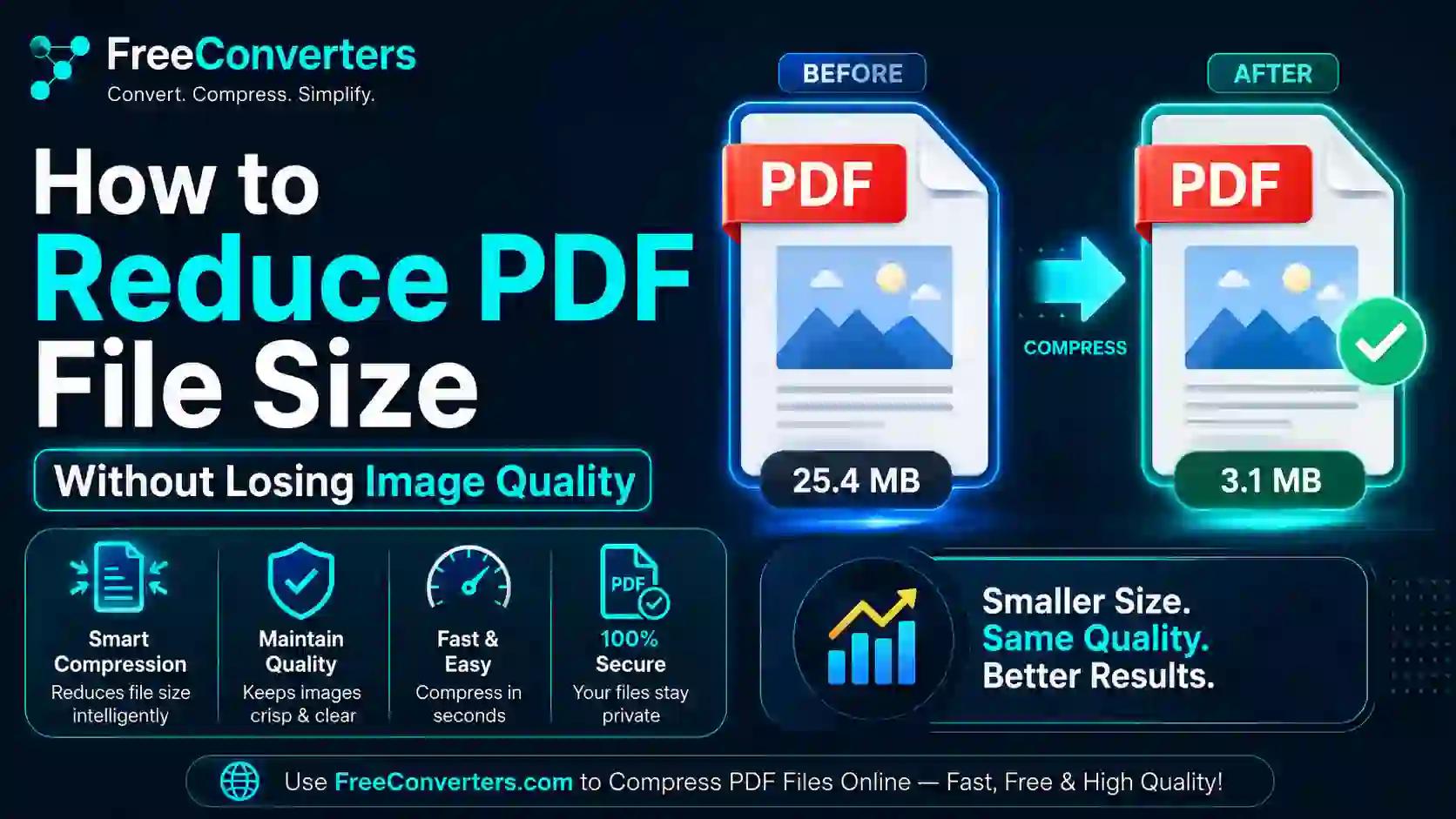
How to Reduce PDF File Size Without Losing Image Quality
A PDF usually gets bloated not because of the text on the page, but because of the images embedded inside it — high-resolution scans, photos, or screenshots saved at far higher resolution than the document actually needs. Reducing PDF file size without losing image quality means compressing those embedded images intelligently, typically by adjusting resolution (DPI) and compression level, rather than blindly shrinking the whole file and accepting blurry results. In this guide, you'll learn exactly how PDF compression works, which settings actually preserve quality, and how to shrink a PDF the right way for email, uploads, or archiving.
Why PDFs Get So Large in the First Place
Most people assume a large PDF means "a lot of pages," but page count is rarely the real culprit. A 3-page PDF full of high-resolution photos can easily outweigh a 300-page text-only document.
The real drivers of PDF file size are:
- Embedded image resolution — a scanned page saved at 600 DPI contains far more data than one saved at 150 DPI, even though both look identical on a screen.
- Uncompressed or lightly compressed images — raw or minimally compressed JPEGs inside a PDF carry significantly more data than optimized ones.
- Embedded fonts — full font sets embedded for every typeface used add weight, especially in design-heavy documents.
- Hidden metadata and layers — scanned documents, in particular, often carry extra data like thumbnails, OCR text layers, or edit history that quietly adds to the file size.
Once you understand that images are usually the biggest contributor, the fix becomes obvious: target the images specifically instead of applying a blunt, one-size-fits-all compression to the entire file.
Does Compressing a PDF Reduce Image Quality?
It can — but it doesn't have to. This is the core anxiety behind almost every search for this topic, so it's worth answering directly.
Compression only visibly degrades image quality when you compress more aggressively than the image's resolution or intended use requires. If a photo was scanned at 600 DPI but will only ever be viewed on a screen (which typically displays at 72–150 DPI effectively), reducing it to 150 DPI loses essentially zero perceptible quality while cutting the file size dramatically. Push that same image down to 72 DPI or apply heavy JPEG compression, and you'll start seeing blur and visible artifacts.
In short: quality loss is a function of how much you compress relative to the image's actual use case, not whether you compress at all.
Lossy vs. Lossless Compression: What's the Difference?
Understanding this distinction is the single most useful thing you can learn before touching any PDF compression tool.
Lossless compression reduces file size by removing redundant data without discarding any actual image information. The output is smaller, but mathematically identical in quality to the original. Gains here are usually modest — often 10–20% — because there's only so much redundancy to squeeze out.
Lossy compression actually discards some image data to achieve much bigger size reductions — often 50–90% smaller. JPEG compression, the format most commonly used inside PDFs, is lossy by nature. The key is that lossy compression applied moderately is often visually indistinguishable from the original, especially for photographs (which are more forgiving of data loss than sharp text or line art).
For most everyday PDFs — reports, forms, portfolios, scanned documents — moderate lossy compression targeted at a sensible DPI gives you the best balance of small file size and preserved visual quality.
Understanding DPI and Why It Matters More Than "Quality Settings"
DPI (dots per inch) measures how much image detail is packed into each inch of the printed or displayed image. It's the real lever behind most PDF size reduction, more so than vague "quality" sliders.
Here's a practical reference for what DPI actually matters for:
- 72–150 DPI — sufficient for on-screen viewing (web pages, email attachments, digital forms). Most people reading a PDF on a laptop or phone will never notice the difference between 150 and 600 DPI.
- 200–300 DPI — the standard for good print quality on regular documents.
- 300+ DPI — needed for professional printing, large-format printing, or documents where fine detail must survive zooming or cropping.
Adobe's own PDF Optimizer tool reflects this principle directly: < cite index="26-1">a commonly recommended starting point is downsampling color and grayscale images to around 150 DPI and monochrome images to 300 DPI, paired with JPEG compression set to Medium or High quality — a combination that keeps the file size low while remaining visually clean for screen and standard print use.</cite>
If your PDF will only ever be viewed digitally — emailed, uploaded, read on a screen — there's no reason to keep images at scanning resolution. That's the single biggest quality-preserving size reduction you can make.
Step-by-Step: How to Reduce PDF Size Without Losing Image Quality
Here's the practical workflow, whether you're using desktop software or a browser-based tool.
- Identify what the PDF is actually for. A PDF headed to a print shop needs a different DPI target than one going into an email attachment or an online application form.
- Choose a compression tool built for PDFs specifically, not a generic file zipper — general compression won't touch the embedded image resolution the way a proper PDF optimizer does.
- Select a moderate compression preset first. Most tools offer low, medium, and high compression levels; medium is usually the sweet spot between size and visual quality.
- Downsample images to match your use case — around 150 DPI for screen-only PDFs, 300 DPI if the document might be printed.
- Compare the compressed file against the original at 100% zoom, specifically on any pages with photos, scanned text, or fine detail, before committing to that version.
- Check the text stays sharp. Compression settings that are safe for photographs can sometimes blur scanned text if pushed too far — this is the one area to double-check carefully on scanned documents.
- If the reduction still isn't small enough, drop the DPI target one more step rather than maxing out the JPEG compression slider, since resolution reduction tends to preserve visual quality better than aggressive lossy compression at the same file-size target.
- Run the file through a dedicated PDF compressor if you want this handled automatically with sensible defaults, without manually adjusting DPI and compression settings yourself.
That's the entire process. The core skill isn't finding the "best" tool — it's understanding that resolution should match intended use, and that moderate settings almost always beat maximum compression.
Compression Level Comparison
Compression Level | Typical File Size Reduction | Visible Quality Impact | Best Use Case
Low | 10–25% | None to negligible | Archiving, print production, legal documents
Medium | 40–65% | Minimal, rarely noticeable on screen | Email attachments, online forms, general sharing
High | 60–85% | Noticeable on close inspection, especially in scanned text | Quick sharing where extreme size limits apply (e.g., strict upload caps)
If you're unsure where to start, medium compression is the safest default for the vast majority of everyday PDFs — job applications, reports, scanned forms, portfolios sent by email.
How to Reduce PDF Size for Specific Use Cases
Different situations call for different priorities. Here's how to think about each common scenario.
Email attachments: Most email providers cap attachments around 20–25MB, but slow connections and spam filters make anything under 5–10MB far more reliable. Medium compression at 150 DPI is usually more than enough.
Job applications and online forms: These often have strict upload limits (sometimes as low as 1–2MB). Prioritize hitting the size limit over preserving maximum resolution — nobody is zooming into a resume at 300%.
University or government submissions: These frequently specify an exact size cap and sometimes a minimum resolution for scanned signatures or documents. Check the requirement first, then compress to match it rather than guessing.
Scanned documents with text: Be more conservative here. Overly aggressive compression can make scanned text blurry or hard to OCR later — stick to 200–300 DPI if the text needs to stay sharp or searchable.
Photography portfolios: These are the one case where you might accept a larger file size to protect visual quality, since the images are the entire point of the document. Medium-low compression with a 200+ DPI target is worth the extra megabytes.
Cloud storage and archiving: For long-term storage where print quality might matter later, low compression or lossless optimization preserves the most flexibility, even though it saves less space.
Common Reasons a PDF Doesn't Compress Well
Sometimes a PDF stays stubbornly large no matter what compression level you apply. A few usual suspects:
- The images were already compressed once. Re-compressing an already-lossy JPEG repeatedly degrades quality without meaningfully shrinking the file further — there's less "extra" data left to remove.
- The PDF contains vector graphics or embedded fonts, not raster images, meaning there's simply no image data to downsample — the size is coming from somewhere else entirely.
- Multiple hidden layers or an embedded thumbnail preview are adding weight the compression tool isn't targeting by default.
- The file includes an OCR text layer on top of the scanned image, which adds a small but real amount of extra data per page.
If a PDF resists compression more than expected, checking what's actually taking up space (images vs. fonts vs. metadata) before choosing a compression strategy saves a lot of trial and error.
Frequently Asked Questions
Does compressing a PDF reduce image quality? Only if the compression is more aggressive than the image's intended use requires. Moderate compression targeted at the right DPI for screen or print use typically preserves quality that looks identical to the original.
What is the best free PDF compressor that keeps quality? Look for a tool that lets you control DPI and compression level separately rather than applying one blanket setting — that granular control is what actually protects image quality while shrinking the file.
How do I reduce PDF size without losing quality for free? Use a free PDF compressor set to medium compression with images downsampled to around 150 DPI for screen use, which cuts file size significantly with minimal visible impact.
Why is my PDF file so large with only a few images? High-resolution scans or photos — especially anything above 300 DPI — carry far more data than the document actually needs for screen viewing, and a handful of these images can outweigh dozens of text-only pages.
Can I compress a PDF without losing text sharpness? Yes, as long as you keep resolution reasonable (200 DPI or higher) for scanned text pages specifically. Text degrades faster than photos under heavy compression, so it's worth checking scanned pages separately from photo-heavy pages.
What DPI should I use to keep PDF image quality high? Around 150 DPI for anything viewed only on screen, and 300 DPI if the document may be printed or needs to preserve fine detail for zooming.
Final Takeaway
Reducing PDF file size without losing image quality comes down to one core principle: match the image resolution to how the document will actually be used, rather than applying maximum compression and hoping for the best. Medium compression at 150 DPI handles the overwhelming majority of everyday PDFs — email attachments, forms, reports — without any visible quality loss, while print-bound or detail-critical documents deserve a lighter touch at 300 DPI. If you'd rather skip the manual DPI adjustments entirely, running the file through a PDF compressor with sensible default settings gets you there in seconds. Once you see how small a well-compressed PDF can get without any visible drop in quality, you'll never go back to sending an unoptimized 40MB scan again.