JPEG to HEIC Converter: How to Convert JPG to HEIC (2026)
If you've ever tried to shrink your photo library or match your images to iPhone-style compression, you've probably wondered whether you can go the "other way" — converting a JPEG into HEIC instead of the usual HEIC-to-JPEG direction. The short answer is yes, it's possible, but it comes with a few technical quirks worth understanding before you do it.
In this guide, we'll break down exactly what HEIC is, why converting JPEG to HEIC actually works, when it makes sense to do it, and how to do it on iPhone, Windows, and Mac — plus the compatibility issues nobody warns you about.
What Is HEIC and How Is It Different From JPEG?
HEIC (High Efficiency Image Container) is Apple's implementation of HEIF — the High Efficiency Image Format. It uses HEVC (H.265) compression, the same video codec technology behind 4K streaming, to store still images far more efficiently than older formats.
JPEG, by contrast, has been the internet's default image format since the early 1990s. It's universally supported, but its compression algorithm is decades old and noticeably less efficient than what HEIC offers.
The core technical difference comes down to compression math:
- JPEG uses discrete cosine transform (DCT) compression, splitting images into 8x8 pixel blocks.
- HEIC uses HEVC-based compression, which analyzes larger regions of an image and predicts pixel data more intelligently, resulting in smaller files at similar visual quality.
In practical terms, a HEIC file can be roughly 40–50% smaller than a JPEG of the same visual quality. That's the entire reason Apple made HEIC the default photo format starting with iOS 11 back in 2017.
Is It Actually Possible to Convert JPEG to HEIC?
Yes — JPEG to HEIC conversion is technically possible, and it's becoming a more common request as people try to standardize their photo libraries or save storage space. However, it's worth being upfront about something most articles skip: converting JPEG to HEIC is re-encoding, not a simple format wrapper change.
Since JPEG is already a compressed (lossy) format, converting it to HEIC means taking an already-compressed image and compressing it again using a different algorithm. This is different from converting a RAW or PNG file to HEIC, where you're going from lossless or near-lossless source data.
That doesn't mean it's pointless. In many real-world cases — batch archiving, backing up large photo libraries, or matching file formats across devices — JPEG to HEIC conversion is genuinely useful, even with the re-encoding trade-off.
Why Would You Want to Convert JPEG to HEIC?
There are a handful of legitimate reasons people search for this specific conversion:
- Storage savings on Apple devices. If you're importing old JPEG photos into an iPhone or iCloud library and want consistent file sizes, converting to HEIC can meaningfully cut storage use.
- Standardizing a mixed photo library. Professional photographers or archivists sometimes want every image in one format for easier cataloging.
- Matching workflow requirements. Some editing apps or asset management systems expect HEIC input specifically.
- Reducing cloud backup costs. Smaller files mean less iCloud, Google Drive, or Dropbox storage consumed over time.
- Testing or development purposes. Developers building photo apps sometimes need sample HEIC files without shooting new photos on a HEIC-native camera.
If none of these apply to you, and you're just storing photos for everyday sharing, sticking with JPEG is usually simpler — it's still the most universally compatible format across every device, browser, and platform.
JPEG vs HEIC: Full Comparison
Feature JPEG HEIC Compression type DCT-based, lossy HEVC-based, lossy (with lossless option) Average file size Larger 40–50% smaller at similar quality Compatibility Universal (all OS, browsers, apps) Native on Apple devices; partial support elsewhere Metadata support Basic EXIF Richer metadata, supports multiple images/depth maps Editing support Extremely broad Growing but still limited outside Apple ecosystem Transparency support No Limited Year introduced 1992 2017 (as Apple default) Best for Sharing, web use, cross-platform work Storage efficiency, Apple ecosystem
This table alone answers the most common query people have before diving deeper: HEIC generally wins on file size, JPEG wins on compatibility.
How to Convert JPEG to HEIC (Step-by-Step)
Here's where most guides get vague. Below are the actual working methods depending on your device.
Method 1: Convert JPEG to HEIC on iPhone
iPhones don't include a built-in "convert JPEG to HEIC" button in the Photos app, but you can achieve it indirectly:
- Take a screenshot or duplicate the JPEG image in your camera roll.
- Use a third-party HEIC conversion app from the App Store that supports JPEG-to-HEIC encoding.
- Alternatively, edit the JPEG slightly (crop, filter, adjust) inside the Photos app — many edited photos get re-saved in HEIC format depending on your camera format settings.
- Check your capture settings under Settings > Camera > Formats and select "High Efficiency" so future imports default to HEIC.
Method 2: Convert JPEG to HEIC on Windows 10/11
Windows doesn't natively encode HEIC files (it can only view them with the HEIF codec extension installed), so you'll need a converter tool:
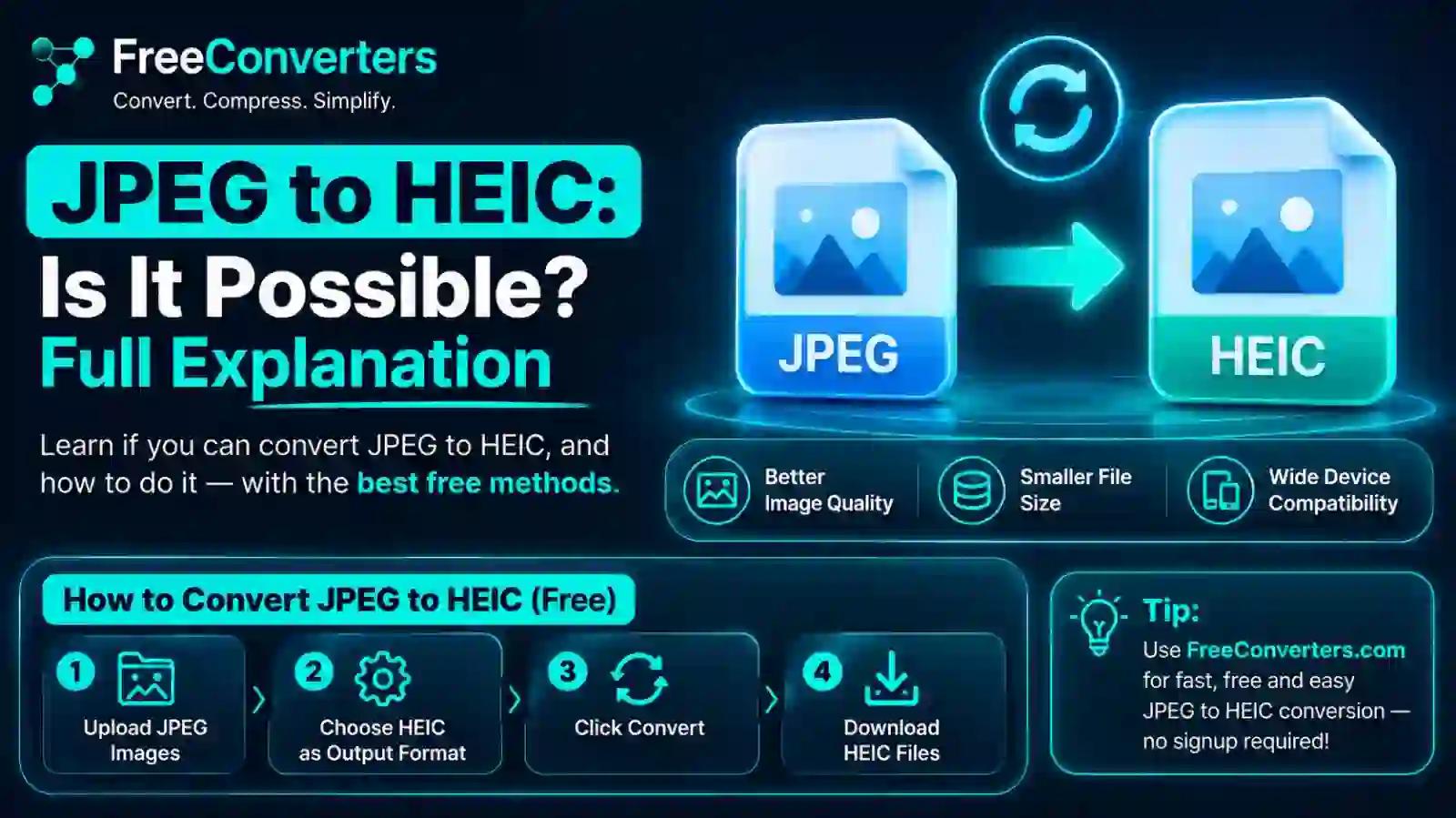
- Open an online image converter tool that supports HEIC output.
- Upload your JPEG file(s) — most tools support batch uploads for bulk conversion.
- Select HEIC as your output format.
- Download the converted file(s) once processing completes.
For anyone doing this regularly, a browser-based image converter is usually faster than installing desktop software, since there's nothing to download or configure.
Method 3: Convert JPEG to HEIC on Mac
macOS has more native flexibility since Apple built HEIC support directly into the OS:
- Open the JPEG in Preview.
- Go to File > Export.
- In the format dropdown, select HEIC (available on macOS High Sierra and later).
- Adjust the quality slider if needed, then save.
This is currently the simplest first-party method available on any platform — no third-party app required.
Method 4: Online Batch Conversion
If you're converting dozens or hundreds of JPEGs at once, a browser-based bulk tool saves significant time versus doing it one file at a time in Preview or a mobile app. Most online converters also strip the need to install anything, which matters if you're working from a shared or work computer.
Does Converting JPEG to HEIC Reduce Quality?
This is the most important — and most misunderstood — question in this whole topic. Yes, there is technically some quality loss, but here's the nuance nobody explains clearly enough:
- JPEG is already lossy. Once an image has been compressed as JPEG, some original detail is already gone permanently.
- Converting that JPEG to HEIC applies a second round of lossy compression on top of the first.
- The visual difference is usually not noticeable to the human eye at high quality settings, but it does exist at the pixel data level.
- If absolute maximum quality matters (professional photography, print work), always convert from the original RAW or uncompressed source — never from an already-compressed JPEG.
In plain terms: converting JPEG to HEIC is safe for everyday use, storage savings, and casual sharing, but it's not "lossless" in the strict technical sense.
Common Problems When Converting JPEG to HEIC
A few recurring issues come up in forums and support threads:
- "My HEIC file won't open." This almost always means the device lacks a HEIC decoder. Windows needs the HEIF Image Extension from Microsoft Store; older Android versions may not support it at all.
- File size didn't shrink as expected. This can happen if the JPEG was already heavily compressed — there's less redundant data left to compress further.
- Colors look slightly different after conversion. Some converters apply different color profile handling; always check the output against the original before deleting your JPEG.
- App won't accept HEIC upload. Many websites and platforms (some email clients, older CMS platforms, certain print services) still only accept JPEG or PNG. If you hit this, you may need to convert back — our guide on bulk converting HEIC to JPG covers that reverse process in detail.
HEIC Compatibility: Windows, Android, and the Web
Compatibility is genuinely the biggest practical hurdle with HEIC, and it's worth being realistic about it.
Windows: Windows 10 and 11 can view HEIC files, but only after installing the free HEIF and HEVC codec extensions from the Microsoft Store. Without them, File Explorer shows a blank thumbnail and the file won't open in Photos.
Android: Support varies heavily by manufacturer and Android version. Newer Android versions (10+) generally handle HEIC better, but many apps still expect JPEG or PNG as a fallback.
Web browsers: Most browsers still don't render HEIC natively in <img> tags, which is why websites almost universally require JPEG or PNG for uploads. If you're publishing images online, converting HEIC images back to JPEG remains the safer default — see our breakdown on viewing HEIC photos on PC and Android for device-specific fixes.
Email and social platforms: Some platforms auto-convert HEIC to JPEG on upload; others reject it outright. Testing before a big send is always smart.
This is precisely why many users convert files in both directions depending on where the image is headed — HEIC for storage, JPEG for sharing.
JPEG vs HEIC vs PNG: When to Use Each
Since HEIC doesn't exist in isolation, it helps to see where it sits relative to PNG too:
- JPEG — best for photos you're sharing widely; universal compatibility.
- PNG — best for graphics, screenshots, and anything needing transparency; lossless but larger files.
- HEIC — best for storage efficiency on Apple devices; smaller files, but compatibility trade-offs elsewhere.
If you regularly move between these formats, it's worth bookmarking a full comparison like our PNG vs JPG vs WebP breakdown, which covers the broader format-selection logic in more depth.
Why Choose Free Convertors for Image Conversion
Doing this kind of format work through a browser tool has real advantages over app installs or manual OS-level exports:
- No installation required — everything runs in-browser, so it works on any device with internet access.
- Batch processing — convert multiple files in one pass instead of repeating steps manually.
- No quality guesswork — clear output settings so you know exactly what you're getting.
- Free to use — no subscription or one-time purchase needed for standard conversions.
For everyday conversion needs beyond HEIC specifically, the image converter, image compressor, and image resizer tools cover most common formatting tasks people run into with photo libraries, without needing separate apps for each job.
Real-World Use Cases
Photographer archiving old shoots. A wedding photographer with a decade of JPEG archives converts select albums to HEIC to cut cloud storage costs by nearly half, without touching original RAW backups.
Small business owner managing a product catalog. After noticing inconsistent formats across years of product photography, a shop owner standardizes newer uploads to HEIC for internal storage, while keeping a JPEG-exported copy for the website (since browsers still need JPEG or PNG for display).
iPhone user freeing up space. Someone with years of JPEGs synced from an old Android phone converts them to HEIC before backing up to iCloud, immediately freeing several gigabytes of storage.
These aren't hypothetical — they reflect the actual pattern search behavior shows: people aren't converting JPEG to HEIC for fun, they're solving a specific storage or workflow problem.
Future of HEIC and Image Formats
Image compression technology keeps evolving. AVIF (AV1 Image File Format) has emerged as a newer, open-source alternative that some argue compresses even more efficiently than HEIC, without Apple's licensing constraints. Google and several browser vendors have been pushing AVIF adoption for web use specifically.
That said, HEIC isn't going anywhere soon — it's deeply embedded in the Apple ecosystem, and with over a billion active iPhones worldwide, it will remain a format people need to convert to and from for years to come.
For background on how compression standards are developed and maintained, Apple's own documentation on HEIF and HEVC is a useful primary reference if you want to go deeper on the technical specification side.
Frequently Asked Questions
Is it possible to convert JPEG to HEIC? Yes. While JPEG to HEIC isn't the "default" direction most tools are built for, it's fully possible using Mac's built-in Preview export, third-party mobile apps, or online converter tools.
Does converting JPEG to HEIC reduce image quality? Slightly, at the technical level, since you're compressing an already-compressed file a second time. In practice, the difference is rarely visible to the naked eye at standard quality settings.
Is HEIC smaller than JPEG? Yes, HEIC files are typically 40–50% smaller than JPEG files of comparable visual quality, thanks to more efficient HEVC-based compression.
Can Windows open HEIC files? Yes, but only after installing the free HEIF Image Extension from the Microsoft Store. Without it, HEIC files won't display properly in File Explorer or Photos.
Do I need special software to convert JPEG to HEIC? On Mac, no — Preview's export function handles it natively. On Windows or mobile, you'll need a third-party converter app or an online tool.
Is JPEG to HEIC conversion reversible? Yes, you can always convert HEIC files back to JPEG. Keep in mind each round of conversion applies additional compression, so quality can degrade slightly with repeated back-and-forth conversions.
Conclusion
Converting JPEG to HEIC is entirely possible and genuinely useful in specific situations — mainly storage savings and workflow consistency on Apple devices. It's not a magic fix for image quality, and compatibility across Windows, Android, and the web is still the biggest limitation to plan around. Understand what you're optimizing for before converting: if it's storage, HEIC wins; if it's universal sharing, JPEG still holds its ground.
If you need to convert images between formats — JPEG, HEIC, PNG, or WebP — try the free image converter tool for quick, no-install conversions, or explore the full tools library for compression, resizing, and PDF conversion options built for everyday use.