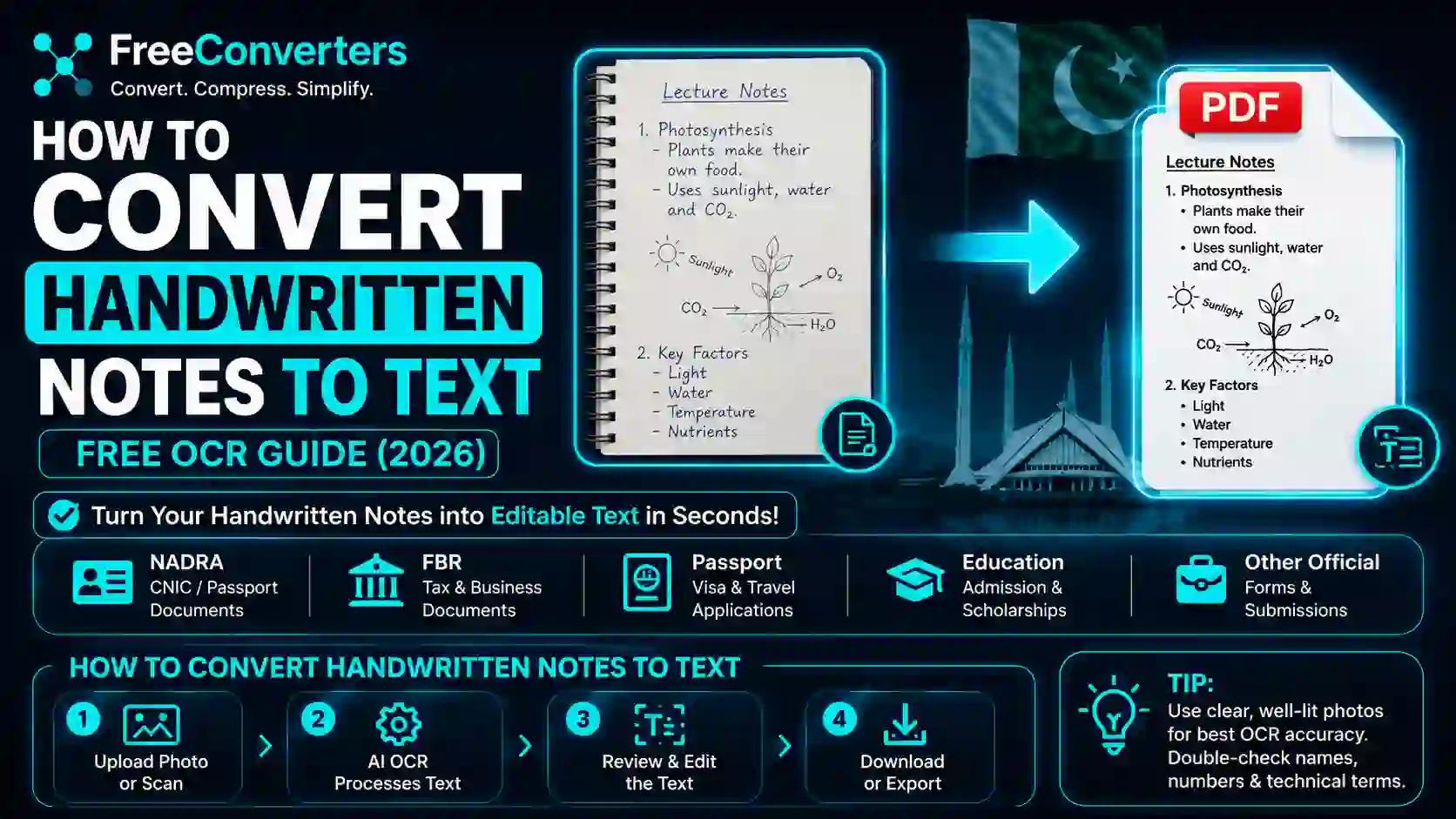
How to Convert Handwritten Notes to Text: Free OCR Guide (2026)
Handwritten notes are great in the moment — fast to jot down, easy to sketch a diagram into — but useless the second you need to search, edit, or share them digitally. Converting a handwritten notes photo into editable text solves that problem by using OCR (optical character recognition) technology to read the handwriting in an image and turn it into text you can copy, paste, and edit like any typed document. In this guide, you'll learn exactly how the process works, which tools actually handle messy handwriting well, and how to fix the errors that inevitably show up along the way.
What Does It Mean to Convert Handwriting to Text?
Converting handwriting to text means feeding a photo or scan of handwritten content into software that identifies each letter, word, and line, then outputs it as digital, editable text — something you could paste into Word, Google Docs, or a plain text file.
This is different from simply taking a photo and calling it "digitized." A photo of your notes is still just an image; you can't search it, copy a sentence out of it, or run spell-check on it. Text extraction changes that by turning pixels into actual characters your computer understands.
According to < cite index="19-1">IBM, optical character recognition is a technology that uses automated data extraction to quickly convert images of text into a machine-readable format, and OCR software can take advantage of artificial intelligence to implement more advanced methods for identifying handwriting specifically.</cite> That AI layer is the part that matters most for handwritten notes, since printed text and handwriting behave very differently once you're asking software to "read" them.
Why Handwriting Recognition Is Harder Than Regular OCR
Traditional OCR was originally built for printed text — uniform fonts, consistent spacing, predictable shapes. Handwriting breaks nearly every one of those assumptions.
Here's what makes handwritten text extraction genuinely difficult:
- No two people write the same letter the same way. An "a" in your handwriting might look nothing like an "a" in someone else's.
- Cursive connects letters together, which forces the software to guess where one letter ends and the next begins.
- Pressure and pen type change stroke thickness, which can confuse edge-detection models.
- Personal shorthand and inconsistent spacing (common in fast note-taking) throw off word boundaries.
Modern tools handle this with neural network-based handwriting recognition rather than older character-matching methods. These models are trained on millions of handwriting samples, which lets them recognize patterns and predict likely letters even when the strokes are ambiguous — closer to how a human reads unfamiliar handwriting by using context clues from surrounding words.
How to Convert a Photo of Handwritten Notes Into Text: Step-by-Step
Here's the practical workflow, whether you're digitizing a single page of lecture notes or an entire notebook.
- Take a clear, well-lit photo of your notes. Natural daylight or even lighting works best — avoid harsh shadows falling across the page, since shadows are one of the biggest causes of OCR misreads.
- Keep the page flat and the camera angle straight-on. A tilted or curled page distorts letter shapes, which lowers recognition accuracy significantly.
- Upload the photo to a handwriting-to-text tool or app. Google Lens, Microsoft OneNote, Adobe Scan, and dedicated OCR web tools all support this, with varying accuracy depending on your handwriting style.
- Let the AI process the image. The software will detect text regions, segment individual words, and generate a first-pass transcription.
- Review the output against your original notes. Even the best handwriting OCR tools rarely hit 100% accuracy on the first pass — treat this as a draft, not a final copy.
- Correct misread words manually. Pay close attention to names, numbers, and technical terms, since these are the words OCR gets wrong most often (there's no surrounding sentence context to help it guess correctly).
- Export or paste the corrected text into your destination file. Depending on the tool, you can send it straight to a Word document, Google Doc, or plain text file.
- If you started from a scanned PDF of multiple handwritten pages rather than a single photo, convert it directly with a PDF to Word tool, which handles the file conversion once the OCR layer has extracted the text.
That's the full pipeline. The AI does the heavy lifting of character recognition; you're responsible for the final accuracy check, especially on the words that carry real meaning — names, dates, and numbers.
How Accurate Is Handwriting-to-Text OCR, Really?
This is the question almost everyone asks before trusting the tool with anything important, and the honest answer is: it depends heavily on your handwriting style and the quality of your photo.
Generally speaking:
- Neat, printed (non-cursive) handwriting converts with high accuracy — often 90%+ with modern AI tools.
- Average cursive or fast note-taking handwriting typically lands in the 70–85% accuracy range, meaning you'll need to review and correct a meaningful chunk of the text.
- Messy, inconsistent, or overlapping handwriting can drop well below 70%, especially in the margins or where notes are cramped.
Numbers, symbols, and unusual proper nouns tend to be the weakest spots regardless of handwriting quality, simply because OCR models rely partly on language context to guess ambiguous characters — and numbers don't have that context to lean on. If a page is full of dates, formulas, or names, budget extra time for manual review rather than trusting an automatic conversion outright.
Comparison: Best Tools for Converting Handwriting to Text
Tool | Platform | Accuracy for Handwriting | Free/Paid | Output Format
Google Lens | Mobile, web | Strong on printed and clear cursive | Free | Copy to clipboard, translate
Microsoft OneNote | Windows, Mac, mobile | Good, integrated with note-taking | Free with Microsoft account | Editable text in OneNote
Adobe Scan | Mobile | Good for printed text, moderate for cursive | Free (paid tier for extra features) | Searchable PDF
Google Keep | Mobile, web | Basic — best for short notes | Free | Text within Keep note
Dedicated OCR web tools | Browser-based | Varies by engine, often tunable | Free and paid tiers | TXT, DOCX, PDF
If your workflow already involves scanned PDFs — say, a stack of handwritten pages photographed into one file — running that file through a PDF to Word converter afterward turns the recognized text straight into an editable document you can format and share.
Common OCR Errors and How to Fix Them
Even accurate tools produce recognizable patterns of mistakes. Knowing what to look for speeds up your review pass considerably.
Letter substitution errors — OCR frequently confuses visually similar characters: "rn" gets read as "m," lowercase "l" gets read as "1," and "O" gets swapped with "0." Scan number-heavy lines twice.
Merged or split words — Tight handwriting can cause two words to merge into one, or a single word to split in half if there's unusual spacing mid-word. Read each line aloud mentally to catch these.
Dropped punctuation — Commas, apostrophes, and periods are small and easy for OCR to miss entirely, especially with a lighter pen or pencil. Re-punctuate manually rather than trusting the raw output.
Misread proper nouns — Names, brands, and technical terms without dictionary matches are the single most error-prone category, since the AI has no language model to "correct" against. Keep a mental list of the specific names in your notes and double-check each one.
Line-order confusion — If your notes include margin comments, arrows, or non-linear layouts (like mind maps), the OCR engine can misread the intended reading order. For structured notes with diagrams, plan to reorganize the text output manually afterward.
Best Practices for Getting Clean OCR Results
A few habits at the photo-taking stage will save you far more editing time than any post-processing trick.
- Photograph directly overhead, not at an angle — even a slight tilt distorts character shapes.
- Use a plain, high-contrast background if the paper edges are visible in frame; clutter behind the page can confuse edge detection.
- Avoid glare from overhead lights or windows reflecting off glossy paper.
- Write with dark ink on light paper whenever possible — pencil and light-colored pens are the hardest for OCR to pick up cleanly.
- Keep lines reasonably spaced if you're taking notes specifically to digitize them later; tightly packed lines increase the odds of merged-word errors.
- Split large or multi-page notebooks into individual photos rather than one wide panoramic shot, since panoramas distort text near the edges.
Real-World Use Cases: Who Actually Needs This
Handwriting-to-text conversion isn't just a student convenience — it solves real problems across a range of situations.
Students digitize lecture notes to make them searchable before exams, turning a physical notebook into something they can Ctrl+F through during study sessions.
Journalists and researchers transcribe handwritten interview notes or archival documents into searchable, quotable text without retyping everything by hand.
Business professionals convert handwritten meeting notes into shareable digital documents right after a whiteboard session, so action items don't stay trapped on paper.
People digitizing old letters or diaries preserve family history in a searchable, backed-up format instead of relying on a single physical copy that can degrade or get lost.
Medical and legal professionals occasionally need handwritten records converted for filing systems, though these fields often require a human proofreading pass given the stakes of getting a name, date, or dosage wrong.
Free vs. Paid Handwriting OCR Tools
Most people can get by entirely on free tools for occasional use. The differences show up with volume and complexity:
- Free tools (Google Lens, Google Keep, basic web OCR) handle single pages or short notes well and cost nothing, but may lack batch processing or advanced formatting options.
- Paid tools typically add batch conversion for multi-page notebooks, higher accuracy tuning, and direct export into formatted Word or PDF documents — worth it if you're digitizing large volumes of handwritten material regularly.
For most everyday needs — a page of class notes, a meeting recap, an old letter — a free tool paired with a quick manual review gets you a clean, usable result without spending anything.
Frequently Asked Questions
Can I convert handwritten notes into text for free? Yes. Tools like Google Lens, Google Keep, and several browser-based OCR tools convert handwriting to text at no cost, though accuracy varies more with free tools on messy or cursive handwriting.
What is the most accurate handwriting-to-text converter? Accuracy depends on your handwriting style, but AI-powered tools using neural network recognition (like Google Lens and Microsoft OneNote) generally outperform older, template-matching OCR engines, especially on printed or semi-cursive handwriting.
Does Google Docs convert handwriting to text? Not natively as a built-in feature, but you can use Google Lens or Google Drive's OCR feature (right-click a scanned image and "Open with Google Docs") to extract text, which then opens directly in an editable Doc.
How do I convert a photo of my notes into a Word file? Run the photo through an OCR tool to extract the text, then paste that text into Word — or if you're starting from a scanned PDF of handwritten pages, use a PDF to Word converter to go straight from file to editable document.
Why does OCR struggle with cursive handwriting? Cursive connects letters into continuous strokes, making it harder for the software to identify where one character ends and the next begins — a challenge printed text simply doesn't have.
Can I convert handwritten notes to text on my phone? Yes. Google Lens, Adobe Scan, and Microsoft OneNote all offer mobile apps that let you photograph notes and extract text directly on iPhone or Android.
Final Takeaway
Converting a handwritten notes photo into editable text is genuinely fast now — most of the heavy lifting happens automatically through AI-based OCR — but it's not a "photo in, perfect document out" process. Take a clean, well-lit, straight-on photo, run it through a reliable tool, and always review the output for the predictable trouble spots: names, numbers, and merged words. For notebooks or multi-page scans already saved as PDFs, converting straight through a PDF to Word tool skips a step and gets you to an editable document faster. Once you've digitized a page or two and seen how much time it saves over retyping by hand, it's hard to go back to leaving notes trapped on paper.