How to Extract Images From PDF Free: Online & No Signup
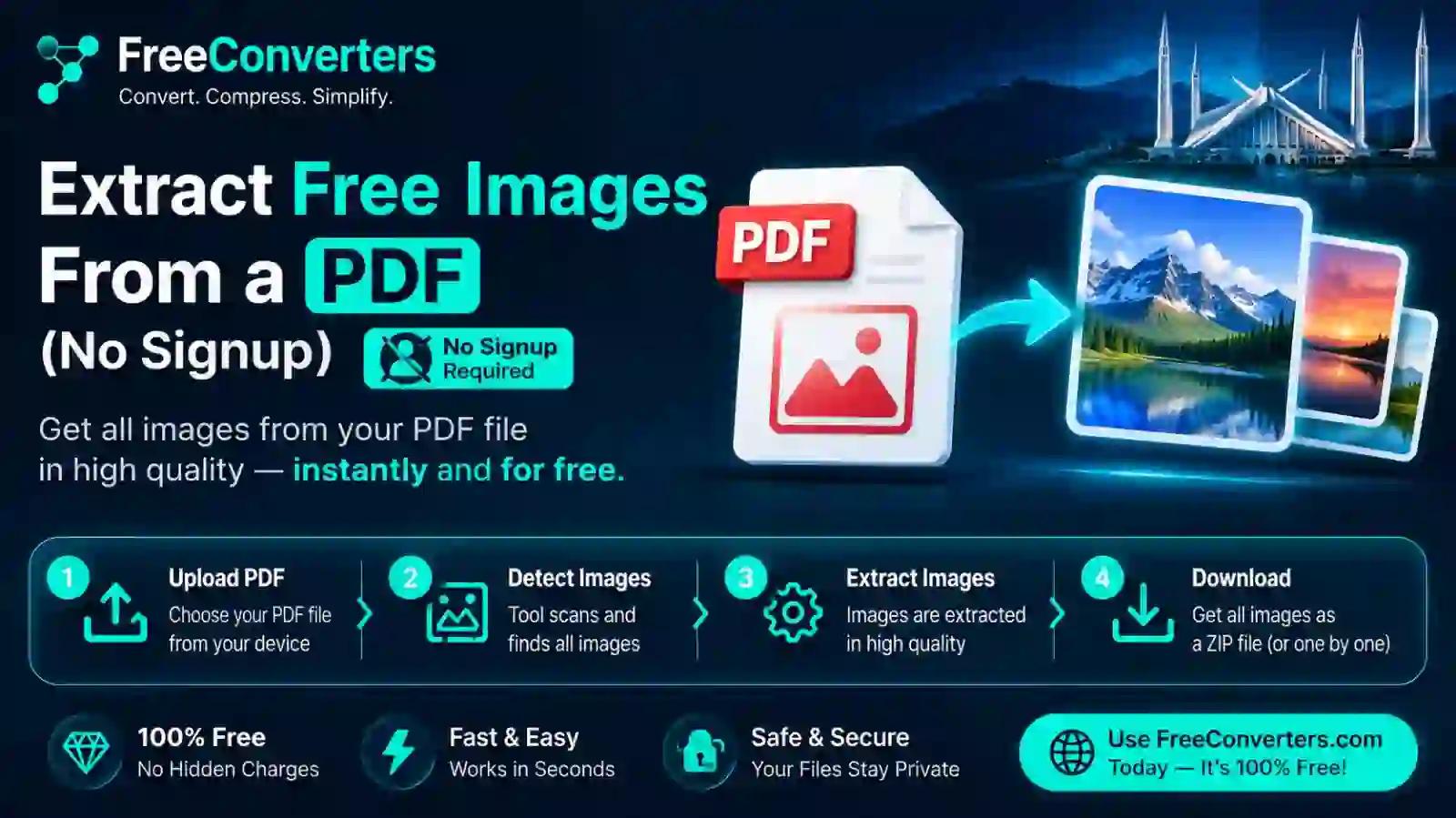
To extract images from a PDF for free without signing up, upload the file to an online image extraction tool, let it scan the document for embedded images, then download them individually or as a batch — no account, no software installation, and no watermark. The whole process typically takes under a minute for a standard document.
Whether you're pulling product photos out of a supplier catalog, saving diagrams from a research paper, or grabbing screenshots buried inside a scanned report, digging images out of a PDF manually is tedious. Screenshotting each page and cropping it in an editor works, but it wrecks image quality and eats up time you don't have. Here's how to do it properly, plus what actually affects image quality during extraction and how to handle trickier cases like scanned documents.
Why You'd Need to Extract Images From a PDF
PDFs are everywhere — reports, e-books, contracts, marketing decks, academic papers — and they often contain images you need somewhere else entirely. A few common scenarios:
- Pulling product photos from a supplier's PDF catalog to use on an e-commerce listing
- Saving charts and diagrams from a research paper for a presentation
- Extracting a signature or logo embedded in a scanned contract
- Grabbing photography from a portfolio PDF a client sent over
- Recovering images from an old PDF where the original source files are long gone
In most of these cases, copying and pasting doesn't work cleanly, and screenshotting introduces compression artifacts and cuts off edges. A dedicated extraction tool reads the PDF's internal structure and pulls the actual embedded image files — not a screenshot of them. If you're unfamiliar with how PDFs actually store content internally, this breakdown of how PDF files are created explains why extraction works the way it does.
How to Extract Images From a PDF (Step-by-Step)
Here's the straightforward process using freeconvertors' image extraction tool:
- Open the extraction tool in your browser — no download or account required.
- Upload your PDF file by dragging it into the upload area or selecting it from your device.
- Let the tool scan the document. It automatically detects every embedded image across all pages.
- Preview the extracted images to confirm the tool caught everything you need.
- Download individually or as a batch. Most tools let you select specific images or grab everything in one ZIP file.
That's the entire workflow. No plugins, no Adobe Acrobat subscription, and no email address required for a basic extraction job.
Extracting Images Without Losing Quality
This is the concern that trips people up most. A few things actually determine whether your extracted images come out sharp or degraded:
The image's original embedded resolution matters more than the tool. If a PDF was built with low-resolution images to begin with (common in web-optimized PDFs meant for quick downloads), no extraction tool can pull a higher-quality version out of it — you can only get back what's actually stored inside the file.
True extraction beats screenshot-based methods every time. A proper extractor reads the raw image data embedded in the PDF's file structure and saves it as-is. Screenshotting a page and cropping introduces a second layer of compression on top of whatever compression the PDF already applied, which is why screenshotted images often look noticeably softer or blurrier. This same compression logic applies in reverse too — if you're building a PDF from images rather than pulling images out of one, understanding what DPI means for image conversion will save you from the same quality-loss trap.
Output format affects quality retention. PNG preserves quality losslessly but produces larger files, while JPG applies additional compression that can slightly soften fine detail, especially in images with text or sharp lines. If a source image has transparency (like a logo), always choose PNG output — JPG will flatten transparent backgrounds to solid white. This guide on PNG vs JPG vs WebP covers exactly when each format actually makes sense.
Extracting Images From a Scanned PDF
Here's where things get more complicated. A scanned PDF isn't actually a document with individual embedded images — in most cases, each entire page is one large image. Extraction tools built for standard PDFs will pull the whole page as a single image rather than isolating individual photos or graphics within it.
If you need to separate multiple photos from a single scanned page (say, a scanned photo album page with four pictures on it), you'll need to:
- Extract the full-page image first using a standard extraction tool.
- Open that image in a basic photo editor.
- Manually crop out each individual photo.
For scanned text documents where you're trying to pull data rather than images, Optical Character Recognition (OCR) is the relevant technology — that's a separate workflow from image extraction, and this guide on converting a scanned PDF to Word walks through that process specifically.
Best Free Tools to Extract Images From a PDF
You don't need Adobe Acrobat's paid tier to do this. Free online extractors handle the vast majority of use cases — everyday documents, catalogs, reports, and presentations. Where a paid desktop tool like Adobe Acrobat becomes genuinely useful is batch-processing hundreds of PDFs at once, or when you need advanced OCR alongside image extraction in the same workflow.
If you're regularly working with PDFs beyond just image extraction, it's worth exploring the rest of the PDF tools collection — compressing oversized files, converting PDFs to Word, or merging multiple images into one PDF are all common follow-up tasks. For anyone comparing free browser-based tools against installed software generally, this comparison of browser-based tools vs desktop software is worth a read before committing to either approach.
Is It Safe to Extract Images From a PDF Online?
This is a fair question, especially with anything involving file uploads. A few things worth checking before trusting any online extractor:
- Does the tool state how long files are stored? Reputable free tools typically delete uploaded files automatically within a short window (often an hour or less) after processing.
- Is the connection encrypted (HTTPS)? This should be non-negotiable for any file upload tool.
- Does it require an account or email? A "no signup" tool that still asks for your email before letting you download is misleading marketing, not a genuinely signup-free service.
If you're extracting images from sensitive documents — contracts, ID scans, financial reports — it's worth reading a tool's privacy policy first. This deeper look at online converter privacy practices explains exactly what to check, and the broader online tools safety guide covers the same question across file converters generally, not just PDF-specific ones.
Extract Images From PDF on Mobile, Mac, or Windows
Since the process runs entirely in-browser, the device barely matters:
- On mobile (iPhone or Android): Open the tool in your mobile browser, upload the PDF from your files or downloads folder, and download extracted images directly to your camera roll or downloads.
- On Mac: No difference from Windows — browser-based tools don't care about the operating system underneath them.
- On Windows: Same process; just make sure your browser is up to date for the smoothest upload experience with larger files.
The only real limitation across devices is upload speed for very large PDFs (50+ MB), which depends more on your internet connection than the device itself.
Extracting Images From a Password-Protected PDF
If a PDF is locked with a password, most online extraction tools won't be able to read its contents until it's unlocked — this is by design, since bypassing password protection without authorization raises both security and legal concerns. If you have legitimate access to the password:
- Unlock the PDF first using a PDF unlocking tool (you'll need the correct password).
- Then run the unlocked file through the image extraction tool as normal.
If you don't have the password and it's not your document, that's a sign you shouldn't be extracting content from it in the first place.
Frequently Asked Questions
How do I extract images from a PDF for free? Upload your PDF to an online image extraction tool, let it scan for embedded images, then download them individually or as a batch. No software installation or account is required for standard extraction.
Can I extract images from a PDF without losing quality? Yes, as long as you use a true extraction tool rather than screenshotting pages. The output quality is limited only by the resolution the images were originally embedded at within the PDF.
Do I need to sign up to extract images from a PDF? No. Legitimate free extraction tools let you upload, extract, and download without creating an account or providing an email address.
Can you extract images from a scanned PDF? You can extract the scanned page as a single image, but if multiple photos appear on one scanned page, you'll need to manually crop them apart afterward using a basic photo editor.
What image formats can I extract from a PDF? Most tools output JPG or PNG. Choose PNG if the image has transparency or you want lossless quality, and JPG if file size matters more than perfect fidelity.
Is it safe to extract images from a PDF online? Generally yes, provided the tool uses HTTPS encryption and states a clear file-deletion policy. Avoid tools that ask for personal information beyond the file itself before letting you download results.
Final Takeaway
Extracting images from a PDF doesn't need to involve screenshots, cropping, or a paid Acrobat subscription — a proper online extractor pulls the actual embedded image files in seconds, at their original quality, with nothing installed and nothing signed up for. Save screenshot-based extraction for scanned documents where individual images aren't separable any other way, and always confirm a tool's file-deletion policy before uploading anything sensitive. For your next PDF task, the full PDF tools suite covers compression, conversion, and merging in the same no-signup format.